The Hidden Truth About Long-Term SSD Storage
I remember the exact moment my stomach dropped to the floor. I had securely saved my most precious family photos and heavy college projects on an expensive, high-speed solid state drive. It sat safely in my desk drawer for months without being plugged into any computer. When I finally connected it to my laptop to find an old tax receipt, the folders were there, but the files simply would not open. I lost completely irreplaceable memories because I did not understand how flash memory actually worked. I assumed my expensive drive was a magic vault, but I was totally wrong. My heart still sinks when I think about those missing pictures, and I promised myself I would never let it happen again.
This silent data killer is happening to normal people every single day. We buy these ultra-fast, modern storage devices thinking they are completely invincible because they have no moving parts. You might be keeping your client's wedding videos, your cryptocurrency recovery keys, or your child's first birthday pictures on an external drive tucked away in a closet.
The thought that your memories and hard work are slowly dissolving into nothing is genuinely terrifying. It strips away our peace of mind and leaves us with a false sense of security. People spend hundreds of dollars on premium storage solutions, only to face devastating heartbreak when they realize their files have randomly turned into unreadable gibberish.
The frustration is incredibly real because there are rarely any warning signs. Your computer does not send you an alert saying your backup drive is slowly dying in your drawer. It just happens quietly in the background.
This creates a massive amount of anxiety for creative professionals, small business owners, and everyday folks who just want to keep their digital lives safe. Knowing that an unplugged drive is essentially a ticking time bomb completely changes how we must look at our backup strategies.
The Hidden Mechanics Behind Flash Memory Wear
To properly protect your files, we first need to look at what is actually happening inside that sleek metal box. Unlike old-school hard drives that use spinning magnetic disks to save information, modern solid state drives use something called NAND flash memory.
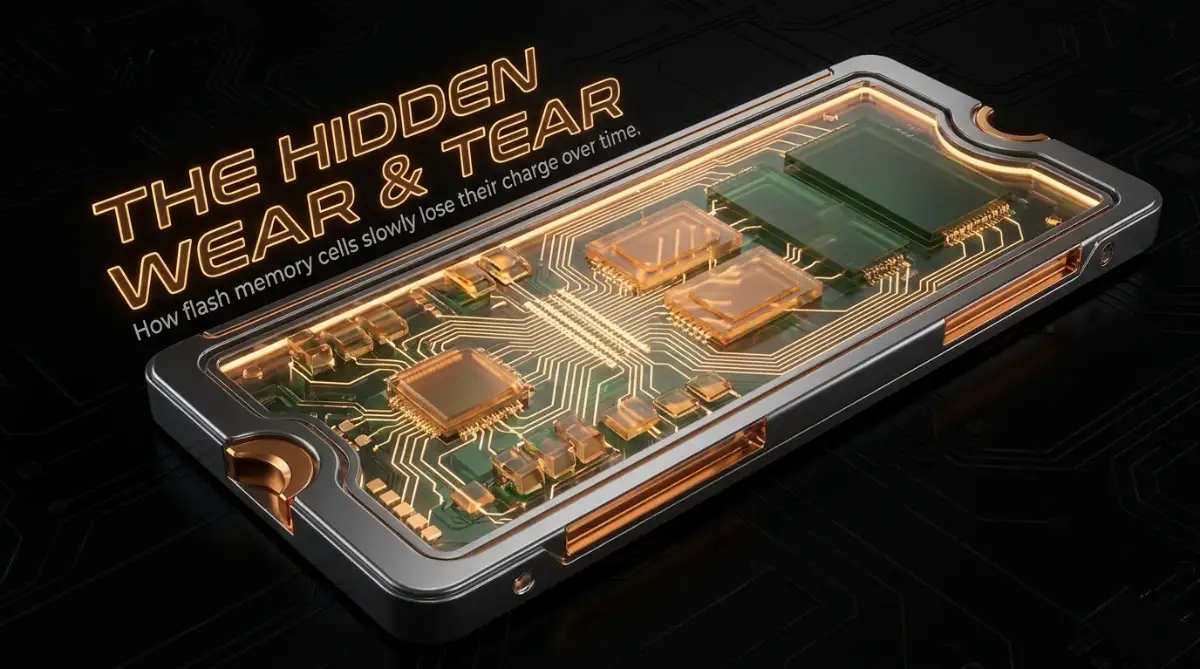
You can think of NAND memory cells as millions of microscopic buckets. Instead of holding water, these tiny buckets hold electrical charges. When a bucket is full of electrons, your computer reads it as a piece of data.
When it is empty, it reads it differently. The problem is that these microscopic buckets are not perfectly sealed. Over time, the electrons can slowly leak out through the walls of the cell.
Why Unpowered Drives Lose Data
When your drive is plugged into a computer, it receives a steady flow of electricity. The drive has a smart internal computer called a controller that constantly checks these electron buckets. If it notices a bucket is leaking, it quickly tops it off with fresh electricity.
However, when you unplug the drive and toss it into a desk drawer, that smart controller loses its power source. It can no longer monitor the buckets or refill them. Over many months or years, the electrical charges slowly leak out until the computer can no longer read the data correctly.
This phenomenon is commonly known as bit rot or charge leakage. It is the number one reason why these extremely fast drives make terrible choices for cold, offline storage. If you leave them completely unpowered for too long, your files will quietly corrupt themselves.
Visualizing Flash Memory Leakage
Understanding this concept is the very first step toward fixing your backup routine. This short video perfectly explains the electron leakage process in plain English. Watch how the cells operate and you will never look at your external drives the same way again.
Watch this incredibly helpful breakdown to see exactly how your unplugged drive slowly loses your files over time:
The Reality of Terabytes Written (TBW)
Charge leakage is not the only enemy your storage device faces. Every single time you save, delete, or move a file, you are causing physical wear and tear on those microscopic memory buckets. The walls of the buckets get slightly thinner and weaker with every single action.
Manufacturers actually measure this expected lifespan using a metric called Terabytes Written (TBW). If a drive has a rating of 300 TBW, it means you can write 300 terabytes of data before the memory cells become too fragile to reliably hold an electrical charge.
Think of it like writing on a piece of paper with a pencil. You can write something down and erase it many times. But eventually, the eraser will wear a permanent hole right through the paper.
Once those memory cells wear out, the drive will lock itself into a "read-only" mode to protect whatever files are left. You will not be able to add anything new to it. This physical degradation is completely unavoidable, but it happens very slowly over normal daily use.
Real-World Factors That Speed Up Degradation
Now that we know the basics of how these devices operate, we need to talk about the outside forces that make things worse. The environment where you store your electronics plays a massive role in how long your files will survive.
Heat is the absolute worst enemy of electronics, and flash storage is exceptionally sensitive to high temperatures. When a memory cell gets hot, the microscopic walls holding the electrons expand slightly. This makes it incredibly easy for the electrical charge to escape.
If you leave your backup drive in a hot car during the summer, or store it near a heating vent in your home, you are actively accelerating the data loss process. A drive that might safely hold data for two years in a cool room might lose files in just a few months in a hot environment.
Myth vs Reality: Storage Habits
Let's clear up some common misunderstandings about keeping your files safe. Many people still follow outdated advice that actually puts their digital life at risk.
The Myth: Solid state drives are the best option for locking away files in a safe for many years because they have no moving parts to break.
The Reality: Mechanical hard disk drives (HDDs) are actually far superior for long-term, unpowered storage because they use permanent magnetic fields instead of temporary electrical charges.
The Myth: You should never format your drive because it ruins the lifespan.
The Reality: A quick format does very little damage to your total TBW limit. It simply rewrites the index of the drive, leaving the actual data cells alone until new data overwrites them.
A Quick Comparison Guide
To make things extremely clear, here is a simple breakdown of how different storage types handle being locked away without power.
As you can clearly see, matching the right tool to the right job is the biggest secret to avoiding unexpected disasters.
Proactive Steps to Keep Your Digital Life Safe
You do not need to be a computer engineer to protect your files from this specific type of degradation. You just need to change a few simple habits in your regular routine. We are going to look at some highly practical actions you can start doing today.
The Power-Cycling Habit
The absolute best way to fight electron leakage is to give your drives the electricity they desperately need. You should never let a backup drive sit in a drawer for more than a few months without turning it on.
Set a recurring reminder on your phone's calendar. Every three to four months, gather all your external storage devices and plug them into your computer.
I make it a personal habit to set a reminder on my phone to plug in all my backup drives every couple of months. I learned the hard way that letting a drive sit powerless in a closet is a guaranteed recipe for data corruption.
Leave them plugged in and powered on for at least an hour. You do not even need to copy new files to them. Just giving the internal controller electricity allows it to scan the memory cells and recharge any buckets that are starting to run low.
Smart Temperature Management
Since we know that heat causes memory cells to leak faster, you need to rethink where you actually keep your backups. Storing them on top of your warm computer tower or near a sunny window is a terrible idea.
Find a dark, consistently cool place in your home. A bottom drawer in a shaded room is usually a fantastic choice. Keeping the devices at room temperature or slightly cooler will significantly extend the amount of time they can hold a charge.
Also, be careful when actively using them. If you are transferring hundreds of gigabytes of video files, the device will naturally get very hot. Make sure it is resting on a flat, hard surface where air can circulate around it. Never leave it buried under a blanket or a stack of papers while it is working hard.
Monitoring Drive Health Before Disaster Strikes
You do not have to guess how much life is left in your storage device. Every modern drive comes with a built-in self-reporting system called S.M.A.R.T. (Self-Monitoring, Analysis, and Reporting Technology).
This system constantly tracks how many terabytes you have written, how many errors have occurred, and what the overall health percentage of the drive looks like. You can easily read this hidden data using free software available online.
By checking this health score once a year, you can clearly see if your drive is approaching its final days. If you see the health drop below seventy percent, it is time to start planning for a replacement before you actually lose anything important.
Taking these few simple steps completely removes the anxiety of sudden data loss. You take back control of your digital life simply by understanding the tools you are working with.
Next-Level Strategies for Bulletproof Data Protection
We already know that leaving your drive unplugged for months is a terrible idea. Now, I want to share some incredibly effective, expert-level strategies that you can use to keep your digital life perfectly safe. These are the exact methods professional data archivists use to protect sensitive information for decades.
You do not need an IT degree to use these methods. You just need a solid plan and a little bit of consistency. Let us look at how you can upgrade your personal backup routine right now.
The Magic of the 3-2-1 Backup Rule
Relying on just one single external drive is basically gambling with your memories. Hardware fails, accidents happen, and drives get lost or stolen. To truly protect yourself from sudden heartbreak, you need to adopt the industry-standard 3-2-1 backup strategy.
This simply means keeping three total copies of your important files. You keep two copies locally on different types of devices, like your computer and an external drive. Finally, you keep one copy offsite, usually in a secure cloud storage service.
If your house gets flooded or your main computer crashes, that offsite cloud copy will literally save the day. Cloud servers are managed by professionals who constantly monitor hardware health. However, if you struggle with uploading large files because of frequent Wi-Fi disconnections, fixing your home network should be your very first priority before starting a huge cloud backup.
Embracing Data Scrubbing File Systems
Most everyday computer users format their drives using standard systems like NTFS for Windows or APFS for Mac. These are perfectly fine for daily tasks, but they lack advanced protection against silent data corruption. If an electron leaks out of a memory cell, these standard systems might not even notice until you try to open the file and see an error message.
Advanced users often switch to smarter file systems like ZFS or ReFS for their long-term storage arrays. Think of these systems as extremely organized digital librarians. They constantly read through your files in the background, actively looking for tiny errors or flipped bits.
If the digital librarian finds a damaged file, it automatically repairs it using parity data before the corruption becomes permanent. While setting up a ZFS server might sound intimidating, companies like TrueNAS make it incredibly easy for regular people to build small, highly secure home servers.
Understanding JEDEC Industry Standards
When you shop for a new external drive, the marketing materials rarely tell you how long the drive will hold data without power. Instead, manufacturers build these devices based on specific industry guidelines. The Joint Electron Device Engineering Council (JEDEC) sets the actual standards for how flash memory should perform under different conditions.
According to consumer standards, a standard solid state drive should retain data for about one year when stored at normal room temperature. Enterprise drives used in huge corporate servers are only rated to hold unpowered data for about three months.
This is because enterprise drives are designed to be plugged in twenty-four hours a day, running heavily. Knowing these physical limitations helps you realize that your expensive consumer drive is a temporary workspace, not a permanent digital vault.
Why You Should Never Fill Your Drive to the Brim
One of the best-kept secrets in hardware maintenance is called overprovisioning. Every solid state drive needs a certain amount of empty space to perform background maintenance. The smart controller inside the drive constantly moves files around to ensure all the memory cells wear out evenly.
If you fill your drive up to ninety-nine percent capacity, the controller has absolutely no room to move things around. The remaining free memory cells will get hammered with new data, wearing them out incredibly fast. It is highly recommended to leave at least fifteen to twenty percent of your drive completely empty.
If your computer is constantly warning you about storage space, you must take action immediately. Taking a few hours to clean up hidden drive clutter will drastically improve your hardware's speed and overall lifespan.
Protect Your Crypto and Financial Assets
Everyday photos are precious, but losing access to financial data can be entirely life-altering. Many people save their cryptocurrency recovery seeds or digital wallet backups onto small flash drives and hide them in a safe. Because these drives use cheap, low-grade NAND memory, they are highly susceptible to charge leakage.
If you are managing crypto assets or storing important financial documents, you should never rely solely on an unplugged flash drive. Instead, print your recovery phrases on physical paper or engrave them into a piece of metal.
Paper and metal do not rely on trapped electrons to hold your information. By keeping a physical backup alongside your digital one, you completely eliminate the risk of a silent hardware failure wiping out your savings.
The Heartbreaking Storage Traps People Fall Into
I have spoken with so many talented photographers, small business owners, and parents who lost completely irreplaceable files simply because they trusted their hardware too much. The mistakes that lead to data loss are rarely dramatic. They are usually small, innocent habits that slowly destroy the device from the inside out.
Let us look at the absolute worst things you can do to your storage drives. Avoiding these common traps will save you from an incredible amount of stress and tears down the road.
The "Sock Drawer" Storage Strategy
The most devastating mistake people make is buying a lightning-fast external drive, loading it up with important files, and throwing it into a sock drawer for safekeeping. They assume that keeping the device perfectly still and protected from physical drops is enough to keep the files safe.
As we discussed earlier, this is a guaranteed way to let your data slowly evaporate. You are starving the internal controller of the electricity it desperately needs to maintain those microscopic memory cells. If you do not power cycle your cold storage drives every few months, you will eventually plug them in and get a terrifying "Format Drive Before Use" error.
At that point, normal data recovery software is basically useless. The electrical charges are simply gone, and no amount of software scanning can bring those electrons back into their buckets.
Ignoring Extreme Thermal Danger
We often treat our tech gadgets like they are invincible bricks of metal and plastic. People will leave their laptop bag sitting in a sweltering hot car during a summer afternoon, completely forgetting that heat is actively destroying the memory cells inside.
According to major cloud storage providers like Backblaze, maintaining a consistent, cool temperature is a primary factor in preventing premature hardware death. When a memory cell gets too hot, its ability to hold an electrical charge drops incredibly fast.
This thermal danger also applies when you are actively using the device. If your computer feels like it is burning your legs, the internal drives are also suffering. Learning how to cool down your overheating laptop will protect your motherboard, your battery, and your sensitive storage devices all at once.
Constant Power Surges and Unsafe Ejections
While leaving a drive unpowered is bad, constantly ripping it out of the USB port without safely ejecting it is just as dangerous. When you pull the cable out while the drive is active, you instantly cut off the power during a write cycle. This can instantly corrupt the file system index, making the entire drive unreadable.
Always take the three seconds required to click "Safely Remove Hardware" on your computer. This sends a signal to the drive to finish whatever background tasks it is doing and park its internal components safely.
Furthermore, you should plug your main computer and external drives into a high-quality surge protector. Just as we know that overnight charging damages electronics if the power adapter is faulty, random electrical spikes from your wall outlet can instantly fry the tiny controller chip inside your backup drive.
Tossing Drives Without Proper Wiping
Eventually, every storage device reaches the end of its natural life. When your drive gets old, slow, or starts showing health errors, you will naturally want to throw it away or recycle it. A massive mistake people make is just dragging their files to the trash bin and tossing the drive into the garbage.
When you simply delete a file, the data is actually still sitting right there on the memory cells. The computer just hides the file name from your view. Anyone with basic free software can plug that discarded drive in and recover your old tax returns, passwords, and private family photos.
Before you ever throw away or donate an old storage device, you must take the proper steps to securely wipe personal data using specialized formatting tools. This permanently overwrites the memory cells with random junk data, ensuring your private life stays completely private.
Taking Back Control of Your Digital Memories
Protecting your most precious digital files does not have to be a scary or overwhelming task. You now understand exactly how flash memory works, why it degrades, and what you can do to stop it. By taking a proactive approach, you are already lightyears ahead of the average tech consumer.
Your memories and hard work deserve to be protected. You no longer have to cross your fingers and hope your files are still there when you plug in an old drive.
Your Weekend Action Plan
I want you to take action this coming weekend. Go through your closets, drawers, and laptop bags to gather every single external drive, USB stick, and old computer you own.
- Plug everything in: Connect each drive to your computer and leave it powered on for at least two hours. Let those internal controllers do their maintenance work.
- Check your storage capacity: Ensure none of your drives are filled completely to the top. Delete old junk files to free up at least twenty percent of the space.
- Run a health check: Download a free S.M.A.R.T. monitoring tool and check the remaining life percentage of your devices.
- Set a calendar reminder: Open your phone right now and set a repeating reminder for three months from today to power cycle your drives again.
A Final Thought on Preserving Your Work
I have lost data before, and I know exactly how helpless that moment feels. My biggest goal in sharing all of this is to make sure you never have to experience that sinking feeling in your chest when a folder refuses to open. Technology is an amazing tool, but it is entirely up to us to manage it responsibly. Take a deep breath, grab your backup drives, and give them the quick electrical charge they need to keep your story perfectly intact.
Frequently Asked Questions About Drive Longevity
How long will an unplugged solid state drive actually hold my data?
Under ideal room temperatures, a brand new drive can usually hold data without power for about one to three years before serious charge leakage begins. However, if the drive is heavily worn out or stored in a hot environment, you could start losing files in just a few short months.
Can I recover my files if my drive suffers from severe bit rot?
Unfortunately, standard data recovery software usually cannot fix genuine charge leakage. Because the actual electrons have escaped the memory cells, the physical data is gone, not just accidentally deleted or hidden. This is why having multiple backups is absolutely non-negotiable.
Is an old-school mechanical hard drive better for a family photo archive?
Yes, mechanical hard disk drives are significantly better for long-term cold storage. They use permanent magnetic fields to write data onto spinning platters, which do not leak over time like electrical charges do. You can safely leave a mechanical drive unplugged for many years without worrying about random bit rot.
Does formatting my external drive ruin its total lifespan?
A quick format does almost no damage to your drive's overall health limit. It only rewrites a tiny index file on the drive, telling the computer the space is empty and ready for new files. A full, deep format does cause some wear, but it is perfectly safe to do occasionally when refreshing an old device.
Will keeping my backup drive plugged in 24/7 damage it?
Leaving a drive plugged in constantly is actually great for preventing bit rot, but it introduces the risk of power surges or accidental drops while it is sitting on your desk. The best middle-ground approach is keeping it unplugged in a cool drawer, and simply powering it on for a few hours every three months.
Disclaimer: The information provided in this blog post is for educational and informational purposes only. While every effort has been made to ensure accuracy, technology standards and hardware behaviors can vary significantly between manufacturers. Always consult official documentation and consider hiring certified data recovery professionals for critical data loss situations. The author and publisher are not responsible for any accidental data loss, hardware damage, or financial consequences resulting from the use of the methods described in this article.

![Proven Ergonomic Desk Setup Adjustments to Stop Tech Neck [Step-by-Step]](https://enapulse.com/storage/uploads/blogs/1787640924_proven-ergonomic-desk-setup-adjustments-to-stop-tech-neck-step-by-step.webp)