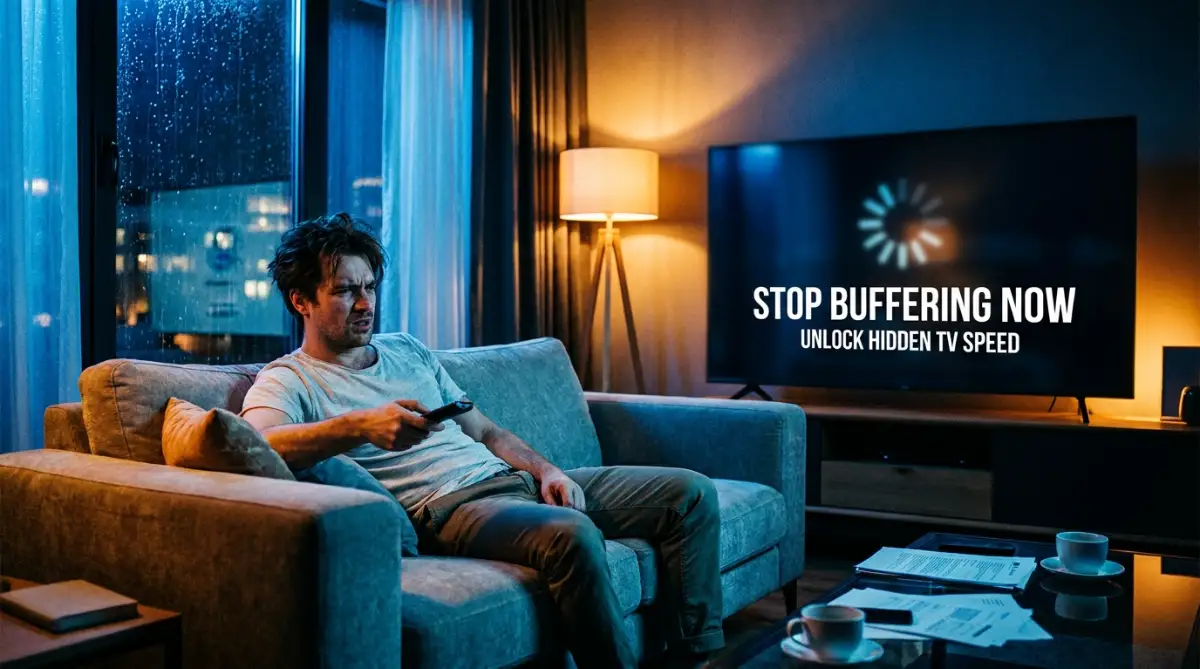
The Night My Movie Marathon Turned Into a Buffering Nightmare
I still remember the exact moment my favorite show froze right at the climax. I had my favorite snacks ready on the table, the living room lights were perfectly dimmed, and I was completely absorbed in the story. Suddenly, the screen went black, and that terrible spinning wheel of doom appeared right in the center.
I pressed every button on my remote, hoping it was just a quick glitch. But my smart TV simply refused to load the next frame, leaving me staring at a frozen screen for what felt like hours. My heart sank as the tension of the movie totally faded away into pure frustration. I felt like tossing the remote across the room because this was happening for the fourth time that week.
I realized I was spending more time watching a loading screen than actually enjoying my weekend entertainment. This simple hardware issue was actively ruining my mental peace after a long, exhausting day at work. I just wanted to relax, but instead, I was fighting with a piece of technology that was supposed to make my life easier.
Millions of people face this exact same annoyance every single evening. You sit down with your family to watch a highly anticipated sports game, and right before the winning goal, the picture drops in quality or freezes entirely. It creates an unnecessary argument in the living room and completely ruins the shared experience.
We pay good money for high-speed internet and expensive streaming subscriptions. Yet, our televisions still act like they are stuck in the dial-up era, responding slowly to every button we press. The reality is that the problem usually is not your internet connection at all.
The real issue often lies buried deep inside the television's own software. The manufacturers hide specific performance menus that can totally change how your device handles data and memory. Once I found out about these hidden menus, my daily watching experience completely transformed.
Pulling Back the Curtain: Accessing Your TV's Hidden Potential
Before we fix the lagging issues, we need to understand why our televisions act so sluggish in the first place. Most modern streaming devices are basically just large smartphones without a touch screen. They have processors, memory, and an operating system that runs multiple apps at the same time.
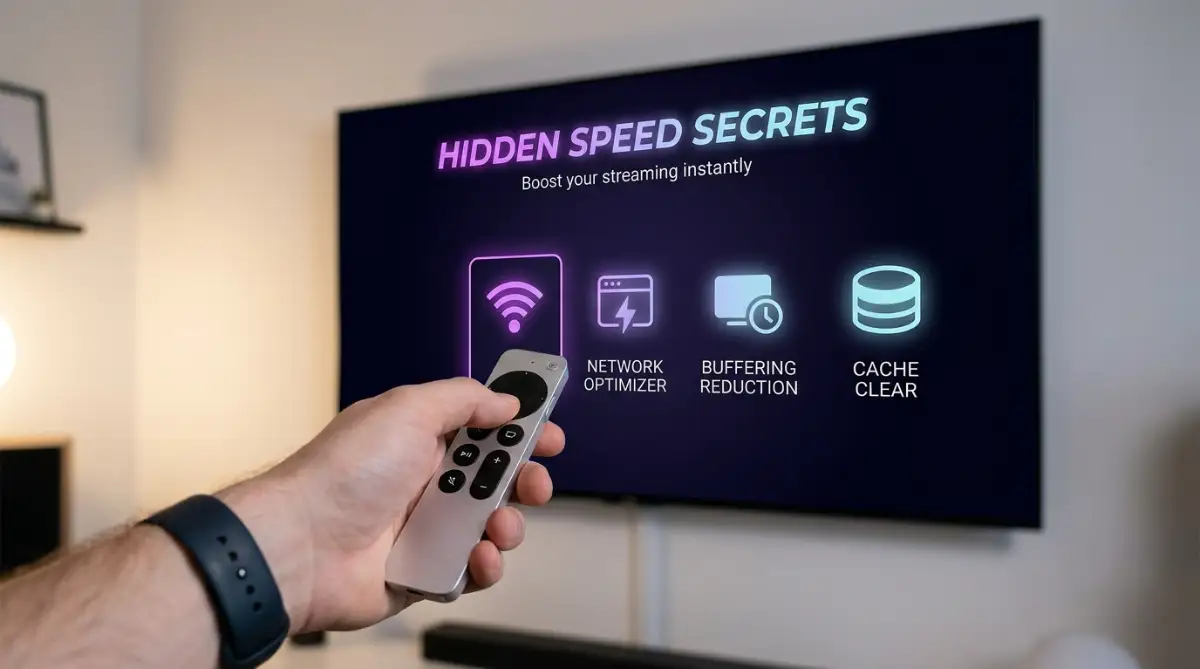
Over time, these devices become overloaded with visual effects, cached data, and background tasks. The manufacturers lock away the most powerful settings to prevent everyday users from accidentally deleting system files. However, accessing these hidden menus is perfectly safe if you know exactly what to look for.
Think of it like opening the hood of your car. You do not need to be a master mechanic to check the oil or refill the wiper fluid. By simply entering a specific section of your settings, you gain access to the raw controls of your device's brain.
To find this secret area, you usually need to navigate to the System Settings or About Device section on your screen. Look for an option labeled Build Number or OS Version. Once you find it, simply click on it repeatedly with your remote about seven times in a row.
You will suddenly see a small message pop up at the bottom of the screen saying you are now a developer. It really feels like unlocking a secret cheat code in a video game. Now, you can go back to the main settings menu, and a brand new option will magically appear.
If you are more of a visual learner, check out this incredible video breakdown before we move on to the exact settings you need to change.
Trimming the Fat: Adjusting the Animation Scales
Now that you have the secret menu open, the very first thing you will notice is a long, confusing list of technical terms. Do not panic, because we only need to touch a few specific items to see massive improvements. Scroll down until you find the settings related to Animation Scale.
There are usually three separate options here: Window Animation Scale, Transition Animation Scale, and Animator Duration Scale. By default, these are usually set to 1x, which tells the system to play a smooth little visual effect every time you open an app or switch menus.
While these effects look pretty, they force your processor to work much harder than necessary. Imagine trying to run a marathon while wearing a heavy backpack filled with rocks. Your television is carrying the heavy weight of those animations every single time you press a button.
To instantly speed up your navigation, change all three of these settings from 1x down to 0.5x, or turn them completely off. The difference is immediately noticeable. Your menus will snap open instantly, and switching between different streaming platforms will feel incredibly responsive.
Managing the Chaos: Setting Background Process Limits
One of the biggest reasons your movies buffer is because your television is running out of active memory, also known as RAM. Every time you open an app, it stays awake in the background even after you switch to a different show. Over a few days, you might have ten different streaming apps silently eating up your memory.
Imagine a busy chef in a small restaurant kitchen trying to cook ten different meals at the exact same time. Eventually, the chef gets overwhelmed, and the food takes forever to reach the customers. Your television's processor acts exactly like that overwhelmed chef when too many apps are running.
Scroll down near the bottom of your new hidden menu until you see an option called Background Process Limit. The default setting usually allows the system to manage everything automatically, which it often does a terrible job at.
I highly recommend changing this setting to "At most 2 processes" or "At most 3 processes". This forces your system to close down old apps that you are no longer using. Suddenly, all of your memory is dedicated entirely to the one single movie you are actually trying to watch.
My personal experience with this specific trick completely changed how I manage my electronics. I used to think my TV was just getting old and broken, so I actually started shopping for a replacement online. Changing this one background limit saved me hundreds of dollars because my device suddenly felt brand new again.
Myth vs Reality: Are We Harming Our Televisions?
When people hear the word "developer," they often assume these settings are dangerous or illegal. Let us clear up some common misunderstandings about what we are actually doing here.
As you can see, the risks are basically non-existent. You are simply telling the software to prioritize speed and video playback over fancy visual tricks.
The Power of GPU Rendering for Smooth Visuals
Another incredible option hidden inside this menu is something called Force GPU Rendering. To understand why this helps, you need to know that your device has two different brains. The CPU handles general thinking, while the GPU is specifically built to handle graphics and images.
Sometimes, the system gets confused and tries to use the general processor to draw the menus on your screen. This causes that annoying lag when you are scrolling through a long list of movies. It feels sticky, slow, and totally unresponsive to your remote.
Turning on Force GPU Rendering tells the system to always use the graphics chip for drawing those menus. Think of it like hiring a specialized artist to paint a portrait instead of asking a math teacher to do it. The specialized artist works much faster and produces a much better result.
When you turn this setting on, scrolling through heavy apps becomes incredibly smooth. You will no longer overshoot the movie you want to select because the remote lag disappears. It makes the entire browsing experience feel premium and snappy.
Why Your Wi-Fi Connection Needs a Clean Path
While adjusting software processing is incredibly helpful, we cannot ignore how your device talks to your internet router. Sometimes, the developer menu includes advanced networking features that can stabilize a weak connection. One common setting you might find is related to Wi-Fi roaming scans.
Some televisions constantly search for better internet networks in the background, even while you are actively watching a show. This constant scanning uses up system resources and can actually cause tiny drops in your current connection. It is like constantly looking for a better parking spot when you are already parked safely.
If you see an option to disable aggressive Wi-Fi scanning, turn it off. You want your device to lock onto your home router and ignore everything else happening in the neighborhood. A stable, single connection is much better than a device that keeps getting distracted.
This specific adjustment helps tremendously if you live in an apartment building with dozens of overlapping internet signals. Your device will stop getting confused by your neighbor's router and will dedicate all its energy to downloading your movie. The result is a much smoother stream with far fewer resolution drops.
Combining Software Tweaks with Basic Maintenance
Even with these powerful new settings activated, you still need to practice basic digital hygiene. Think of these hidden options as putting premium fuel in your car. It helps tremendously, but you still need to wash the car and check the tire pressure occasionally.
Clearing your application cache is the perfect companion to the adjustments we just made. Cache is simply temporary data that apps store so they can load faster the next time you open them. However, when this temporary data gets too large, it actually causes the system to choke and freeze.
Make it a habit to jump into your regular storage settings once a month and hit the Clear Cache button. Do not worry; this will not delete your passwords or your watch history. It simply sweeps away the digital dust that accumulates over time.
When you combine a clean cache with reduced background limits and disabled animations, the results are explosive. You are giving your processor a clean slate to work with every single time you turn on the screen. The combination of these methods is the real secret to completely eliminating buffering.
Experiencing the Magic of a Responsive Screen
Let us picture that stressful movie night scenario one more time. But this time, imagine you have already applied all of these powerful changes to your living room setup. You sit down, grab the remote, and press the power button.
The screen turns on instantly, without any sluggish loading bars. You press the navigation buttons, and the cursor jumps from app to app exactly when you press it. There is zero delay between your hand and the action on the screen.
You select your favorite heavy streaming application, and it opens in half the time it used to take. You find your movie, hit play, and the video starts within a single second. The picture quality immediately jumps to high definition because the processor is not distracted by anything else.
There are no dropped frames, no spinning wheels, and absolutely no frustration. You can finally lean back, relax, and completely immerse yourself in the story just like the director intended. This is the exact experience you deserve, and you do not need to buy a brand new television to get it.
Beyond the Basics: Maximize Your Television's Processing Power
We have already covered the immediate fixes that change how your screen feels. But if you want to keep that lightning-fast performance for months, you need to understand a few deeper secrets. The factory settings on your device are basically designed to serve the manufacturer, not you.
Your television is constantly running background tasks that you never even asked for. One of the biggest silent speed killers is something called Automated Content Recognition, or ACR. This is a built-in tracking program that constantly watches what you put on the screen.
The manufacturer uses ACR to collect your viewing habits and send that data back to their servers for advertising purposes. Imagine trying to run a sprint while someone is constantly forcing you to write down everything you see. That is exactly what your processor is doing while you are trying to stream a high-definition movie.
You can usually find the option to disable ACR in your general privacy or security menus, separate from the developer area. Turning this off immediately stops your television from sending unnecessary data through your internet connection. It frees up your bandwidth and takes a massive load off your internal memory.
The Ethernet Advantage: Bypassing Wireless Interference
Another massive secret to permanent speed involves how your device physically receives its data. Wi-Fi is incredibly convenient, but it is also heavily affected by walls, furniture, and even your microwave. A wireless signal is like trying to catch rain in a bucket on a windy day.
If you want the absolute best streaming experience, you need to use a physical Ethernet cable. Plugging your television directly into your router provides a dedicated, uninterrupted highway for your movie data. It completely removes the guesswork and perfectly aligns with official software documentation for hardware acceleration which assumes a stable connection.
When you use a direct cable, your processor no longer has to constantly decode weak wireless signals. It can simply take the data and immediately push it out to your screen. This one physical change, combined with our previous software adjustments, creates a truly flawless viewing experience.
Silencing Automatic Updates During Prime Time
Have you ever noticed your screen getting extremely sluggish right in the middle of a Friday evening? This happens because many systems are programmed to download heavy software updates whenever they sense a steady internet connection. Your device basically decides to renovate the house while you are still trying to live in it.
To stop this from ruining your movie night, go into your main system settings and look for the application update section. Change the setting from "Automatic" to "Manual" or "Notify Me". This puts you back in complete control of your hardware.
You can now choose to install those heavy updates on a Sunday morning while you are drinking coffee and not using the screen. By controlling when data gets downloaded, you prevent unexpected processor overload. It is a simple habit that works just like clearing up hidden digital clutter on your personal computer.
The Setup Disasters That Secretly Kill Screen Performance
It is incredibly exciting to unlock new menus and find hidden buttons. However, I have seen so many people let this excitement turn into a complete technical disaster. They start clicking everything they see, thinking every button is a magic speed boost.
The developer menu is powerful, but it contains specific settings meant for actual software engineers testing custom applications. If you change the wrong thing, you might accidentally make your screen completely unusable. Let us look at the most dangerous traps people fall into and how you can easily avoid them.
Scenario 1: The USB Debugging Trap
Right near the top of the secret menu, you will see a switch labeled "USB Debugging". Many people turn this on because the word "debugging" sounds like it fixes errors and removes bugs. In reality, this opens a direct security port meant for programmers to push raw code directly into the system.
Turning this on does absolutely nothing to help your movies play faster. Instead, it leaves your device vulnerable and forces the system to constantly monitor the physical USB ports for incoming commands. Always leave USB debugging turned completely off unless you are actively building your own smart applications.
Scenario 2: Blaming the TV for Router Problems
I often get messages from people who changed all the animation scales but still face terrible loading screens. They get extremely frustrated and think the software tricks are a complete scam. But when we look closer, their television is sitting right next to a thick brick wall, completely blocking the internet signal.
You cannot fix a blocked signal by changing visual animations. If your physical setup is terrible, you need to focus on fixing dropping internet connections before messing with advanced software. Sometimes, simply moving your router two feet to the left solves the problem entirely.
People also completely ignore selecting the best router frequency for their specific living room layout. The 2.4GHz band is like a crowded, slow highway, while the 5GHz band is a fast, empty VIP lane. Making sure your television is on the right frequency is just as important as meeting the national broadband streaming recommendations for high-definition video.
Scenario 3: The Overheating Enclosure
Because modern screens are so incredibly thin, we love to push them flat against the wall or trap them inside tight wooden entertainment centers. We totally forget that these panels contain heavy processing chips that generate a massive amount of heat. When a processor gets too hot, it automatically slows itself down to prevent melting.
This safety feature is called thermal throttling, and it will ruin your streaming speed instantly. Your device will feel sluggish, unresponsive, and menus will freeze completely. It is the exact same issue people face when managing device operating temperatures on a heavy work computer.
Always leave at least a few inches of breathing room behind your screen for proper airflow. Dust the back vents regularly so the internal fans can actually push the hot air out into the room. A cool processor is a fast processor, and basic physical maintenance goes a very long way.
Your Blueprint for Flawless Weekend Movie Nights
We have covered a massive amount of technical ground today, from hidden animation toggles to aggressive background limits. You now possess the exact knowledge needed to take full control of your living room entertainment. You are no longer at the mercy of default manufacturer settings that prioritize flashy effects over actual performance.
By taking just ten minutes to adjust these hidden features, you can completely revive a device that you thought was dying. You do not need to spend hundreds of dollars on a brand new model just because the menus feel a little heavy. A few smart software adjustments can easily give your current hardware several more years of vibrant, responsive life.
Make it a personal habit to check these settings every few months, especially after the manufacturer pushes a large system update. Sometimes, major updates will silently revert your preferences back to their sluggish factory defaults. Staying proactive ensures that your device always runs on your specific terms, delivering exactly what you expect.
If you ever feel overwhelmed by bright, uncomfortable colors while testing these new speeds late at night, remember to protect your eyes. You can easily adjust your basic picture modes, similar to reducing harsh evening screen glare on your smartphone. Comfort is just as important as raw speed when you are sitting down for a three-hour cinematic journey.
I honestly wish I had known about these hidden performance tricks years ago instead of fighting with my electronics every single night. My living room has finally become the stress-free relaxation space it was always meant to be. I am so excited for you to grab your remote today, unlock that hidden menu, and experience this incredible speed for yourself!
Quick Answers to Your Streaming Speed Doubts
Do these secret menus reset when I turn off the screen?
No, the adjustments you make inside the developer area are permanently saved by your operating system. They will remain active even if you unplug the device from the wall and plug it back in later. You only need to check them again if you perform a complete, hard factory reset.
Will making these changes ruin my picture quality?
Not at all! We are only changing how the system draws basic menus and handles background memory. Your movies and shows will actually look much better because the processor can focus entirely on delivering high-quality video frames.
Does turning off animations cause remote delay?
Actually, it does the exact opposite. When you look at professional tools for measuring exact remote response delays, turning off visual effects creates a much faster input time. Your cursor will jump instantly the millisecond you press a directional button.
Can I turn the visual effects back on if I do not like the new look?
Yes, you have complete freedom to reverse any change you make. If you miss the smooth, fading transitions between your applications, simply go back into the menu. Change the animation scales back to 1x, and everything will return to normal immediately.
Does this trick work on older television models?
Yes, almost every smart display created in the past decade has a version of this hidden system menu. The exact steps to unlock it might vary slightly depending on the brand, but the core settings are universal. Even a five-year-old device will show massive improvements after applying these limits.
Disclaimer: The information provided in this blog post is for educational and informational purposes only. Modifying software settings carries minimal risk but should be done carefully. We are not responsible for any accidental data loss, warranty voids, or hardware malfunctions that may occur. Always consult your specific device's official manual or customer support if you feel unsure about changing advanced system preferences.
![Proven Ergonomic Desk Setup Adjustments to Stop Tech Neck [Step-by-Step]](https://enapulse.com/storage/uploads/blogs/1787640924_proven-ergonomic-desk-setup-adjustments-to-stop-tech-neck-step-by-step.webp)