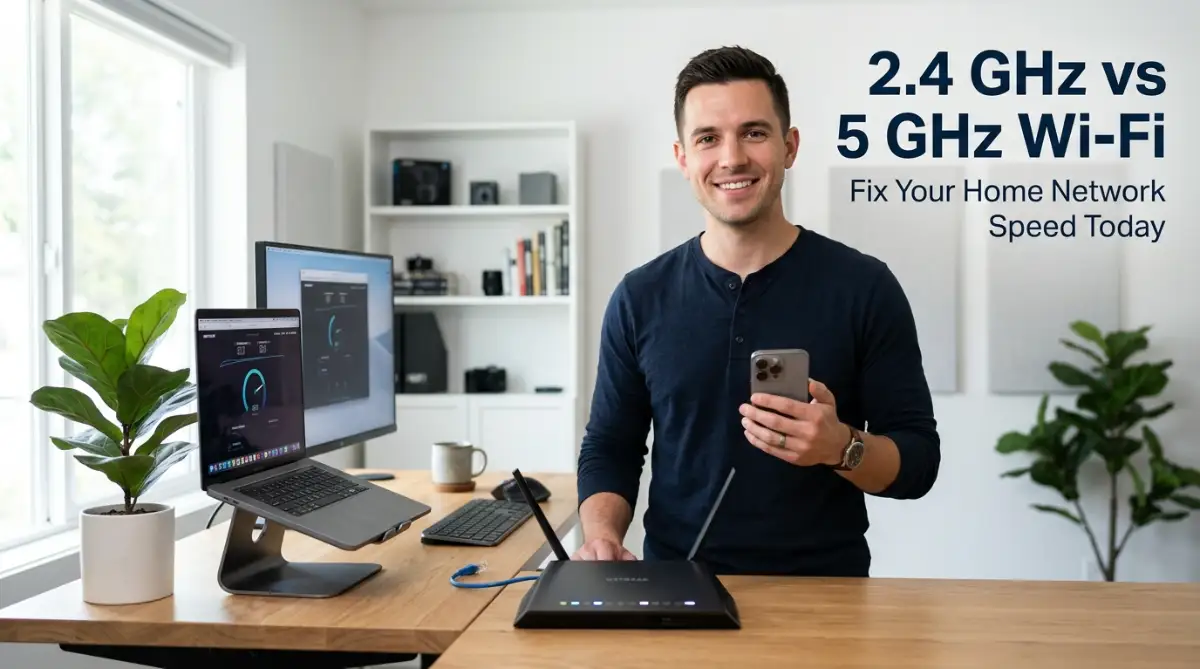
The Frustrating Reality of Slow Home Internet
I spent nearly two hours last Tuesday night staring at a spinning wheel on my living room television screen. My favorite show was stuck at ninety-nine percent buffering right at the climax of the episode.
I checked my billing statement to confirm I was paying for high-speed fiber internet. The provider promised three hundred megabits per second, yet my video looked like a pixelated recording from decades ago.
I walked into the home office, ran a speed test right next to the router, and saw full speed. But the moment I sat back down on my couch just thirty feet away, the signal dropped significantly.
That frustrating evening forced me to dig deep into how wireless signals actually travel across our living spaces. I realized that millions of people experience this exact same mystery every single day in their homes.
The Breakdown of Daily Wi-Fi Performance Drops
- Paid Connection Speed: 300 Mbps from internet service provider.
- Actual Speed in Bedroom: Drops down to 12 Mbps behind closed doors.
- Expected Streaming Quality: Crisp 4K Ultra HD video resolution.
- Actual Daily Result: Constant buffering icons and pixelated video quality.
- User Mental Impact: Shift from relaxing evening to extreme frustration.
Slow internet is no longer just a minor technical glitch in modern daily life. It creates immediate stress when you are trying to submit an important work document before a hard deadline.
It ruins family movie nights and causes sudden lag during intense online gaming sessions. Most people assume their internet provider is ripping them off whenever a web page takes forever to load.
However, the real culprit behind your lagging connection is usually sitting right inside your home layout. It is often the simple misconfiguration of your router frequency channels.
Understanding how wireless radio signals work removes the constant headache of unstable connections. You do not need a degree in computer engineering to fix your home wireless network.
Once you understand why signals struggle to pass through objects, you gain total control over your digital experience. You can eliminate dead spots without spending a single dollar on unnecessary equipment upgrades.
Understanding How Your Router Broadcasts Data
Your wireless router is essentially a sophisticated radio transmitter sitting quietly on your desk or shelf. It instantly converts digital data from your internet cable into invisible radio waves that travel through the air.
Your smartphone, laptop, and smart television capture these invisible waves and translate them back into usable data. This constant back-and-forth communication happens millions of times every single second without you ever noticing.
How Data Travels Through Your Home Network
- 1. Internet Provider: Feeds high-speed digital data directly into your modem cable.
- 2. Wireless Router: Transforms those digital packets into high-frequency radio signals.
- 3. Radio Waves: Travel outward through open air, drywall, wooden doors, and furniture.
- 4. Receiving Devices: Your phone or laptop translates the signals back into crisp video, text, and audio.
These radio waves operate on specific frequency channels measured in Gigahertz. The two primary radio highways your router uses to send information are 2.4 Gigahertz and 5 Gigahertz.
Think of these frequency bands as two completely different types of roads running through your living space. One road is broad and long, but it has a low speed limit and suffers from heavy traffic congestion.
The other road is a sleek modern racetrack that allows ultra-fast speeds, but ends abruptly after a short distance. Choosing the wrong road for your specific device creates immediate speed bottlenecks across your entire home network.
The Fundamental Characteristics of 2.4 GHz
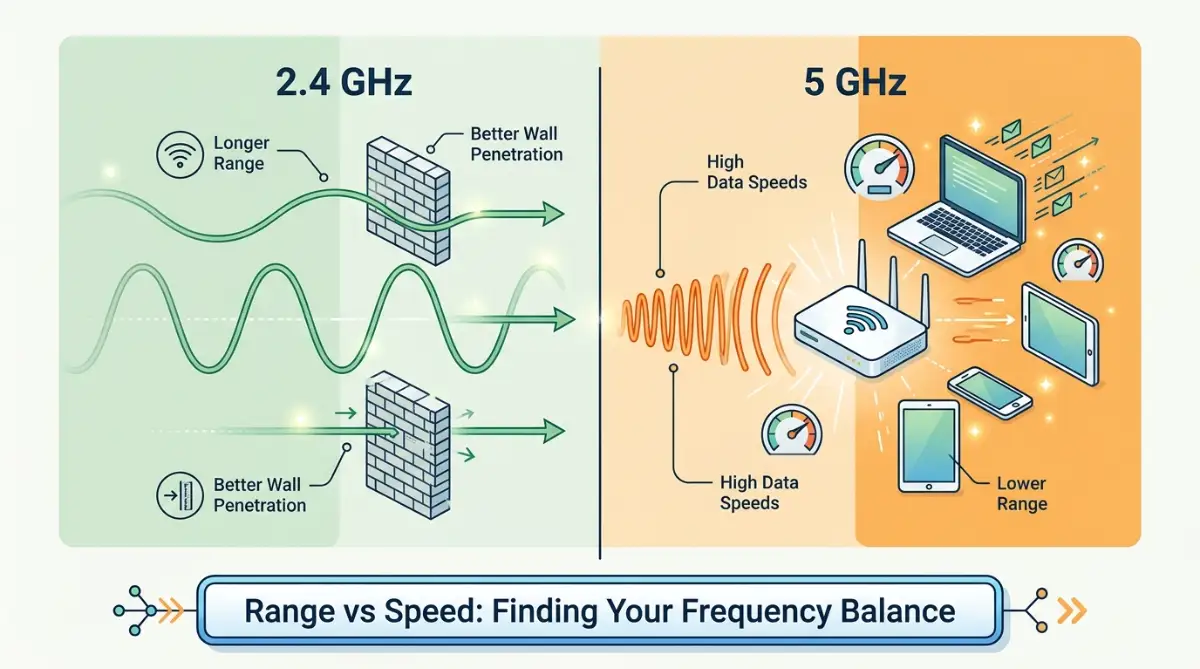
The 2.4 Gigahertz frequency is the original standard used by almost all traditional wireless devices. It uses longer radio waves that are exceptionally good at traveling long physical distances.
These longer waves effortlessly bend around heavy furniture and push through solid drywall and wooden doors. If you stand far away in your backyard, this is the frequency keeping your phone connected.
- 2.4 GHz Signal Wave Pattern: Longer wave cycles that penetrate solid walls and spread over wide distances.
- 5.0 GHz Signal Wave Pattern: Shorter wave cycles that transmit data fast but bounce off heavy physical structures.
However, because this frequency band has been around for so long, it is extremely crowded. Almost every smart device in your neighborhood shares this narrow wireless space.
Your garage door opener, baby monitor, Bluetooth speaker, and microwave oven all broadcast on this same frequency. This creates massive signal noise that causes your connection to slow down and drop data packets.
The Fundamental Characteristics of 5 GHz
The 5 Gigahertz frequency was introduced to relieve overcrowding and provide dramatically faster data transfer rates. It operates using much shorter radio frequencies that can carry massive amounts of information instantly.
If you are downloading large video files or streaming high-definition content, this frequency delivers top performance. It feels like upgrading from a dusty side street onto a clear interstate highway.
The main drawback of short radio waves is their inability to penetrate solid physical barriers easily. Dense concrete walls, brick fireplaces, metal mirrors, and thick floors reflect or absorb these signals quickly.
When a 5 Gigahertz signal hits a heavy plaster wall, it loses a large portion of its strength immediately. That is why your internet speed drops dramatically when you move just two rooms away from your router.
Why Physical Obstacles Cause Signal Loss
Radio waves do not move through physical matter without losing energy along the way. Every object standing between your router and your smartphone acts like a partial sponge for radio signals.
Clear air offers almost zero resistance, allowing waves to travel fast and clean. But solid building materials absorb radio energy and turn it into tiny amounts of heat.
Signal Degradation Through Common Materials
- Open Room Air: Retains 99% of original signal strength.
- Standard Drywall: Retains about 80% of original signal strength.
- Solid Concrete & Brick: Drops down to 20% or less signal strength.
- Metal Doors & Mirrors: Bounces signals back, causing chaotic interference.
Glass windows and wooden doors cause minor signal degradation that you rarely notice during daily browsing. Drywall and basic wooden framing drop signal strength by a small, manageable percentage.
However, reinforced concrete walls, foil-backed insulation, and tile bathrooms act like giant brick barriers for wireless signals. Metal surfaces reflect radio waves backward, creating chaotic interference patterns in your living room.
Pro Tip: I used to keep my router tucked neatly inside a wooden TV cabinet behind a metal mesh door. My connection doubled in speed the moment I moved the device out onto an open shelf above the cabinet.
The Hidden Impact of Household Appliances
Many homeowners never suspect that everyday kitchen appliances are secretly sabotaging their wireless performance. In fact, your microwave oven is often the biggest silent killer of 2.4 Gigahertz Wi-Fi signals in any house.
Microwaves warm up food using high-powered electromagnetic energy on that exact same 2.4 Gigahertz radio frequency spectrum. Even though modern microwave doors feature heavy shielding, tiny leakages of radio energy naturally escape into your home during operation.
Why Your Kitchen Microwave Causes Sudden Buffering
- Shared Frequency Band: Both your Wi-Fi router and your microwave compete on the exact same 2.4 GHz radio space.
- Escaping Signal Noise: Tiny bursts of radio leaks flood nearby room channels with heavy background noise.
- Instant Packet Drops: This sudden interference forces your router to pause data transfers, causing live videos to buffer or drop in quality.
Major Appliances Competing on the 2.4 GHz Frequency
- Microwave Ovens (Emits matching 2.4 GHz radio radiation during heating cycles)
- Bluetooth Headsets and Speakers (Constant frequency-hopping signals)
- Wireless Baby Monitors (Uncompressed real-time audio and video streams)
- Cordless Landline Phones (Continuous radio waves across nearby channels)
When you turn on the microwave to heat a cup of coffee, your nearby Wi-Fi network suffers instantly. You might notice your streaming video pause or drop quality until the microwave finishes its cycle.
Bluetooth devices, cordless home phones, and wireless security cameras also flood the airwaves with competing radio noise. Moving high-bandwidth devices away from these interference sources immediately restores lost connection speed.
Deciphering Network Congestion and Channel Overlap
Wireless frequency bands are divided into smaller numerical sub-channels, similar to lanes on a highway. The 2.4 Gigahertz band only contains eleven total channels available for home routers in North America.
To make matters worse, only three of these eleven channels do not overlap or interfere with one another. Channels one, six, and eleven are the only non-overlapping paths on the 2.4 Gigahertz spectrum.
The Non-Overlapping Channel Layout for 2.4 GHz
- Channel 1: Safe isolated band boundary.
- Channel 6: Middle clear frequency lane.
- Channel 11: High isolated band boundary.
(Note: Channels 2, 3, 4, 5, 7, 8, 9, and 10 overlap heavily with neighbors, causing dropped packets.)
If your router broadcasts on channel two, it overlaps with signals on channel one and channel three simultaneously. This creates cross-talk interference that forces your router to constantly resend dropped data packets.
When every neighbor in your apartment building leaves their router set to automatic channel selection, congestion spikes. Everyone ends up fighting for space on the exact same narrow radio lanes during peak evening hours.
The Advantage of Expanded Channels in 5 GHz
The 5 Gigahertz spectrum offers a vastly superior highway system for your wireless internet traffic. It features up to twenty-four individual non-overlapping channels that operate completely independently of each other.
This vast spatial separation means your router rarely fights for airtime with your next-door neighbor's network. It is like moving from a narrow single-lane country dirt road onto a twenty-four-lane modern superhighway.
5 GHz Channel Availability Advantage
- Contains up to 24 distinct non-overlapping channels.
- Provides zero interference between adjacent home networks.
- Supports wider channel bonding for ultra-fast downloads.
Because these channels do not crowd together, your data moves cleanly without waiting for other signals to clear. This structural design dramatically lowers latency, which is essential for smooth video calls and online gaming.
Even in high-density apartment complexes, 5 Gigahertz networks maintain stable performance because channel options are abundant. Switching your high-performance devices to this spectrum instantly eliminates neighborhood network congestion.
Debunking Common Myths About Wi-Fi Speeds
A widespread myth claims that 5 Gigahertz internet is always superior to 2.4 Gigahertz in every situation. Many users immediately switch all their household electronics to 5 Gigahertz, expecting magical speed upgrades everywhere.
They are then surprised when smart home light bulbs or outdoor security cameras fail to stay connected properly. Higher frequency does not mean better performance if your device is positioned far away from the router.
- Myth: "5 GHz is always better than 2.4 GHz for every single device in the house."
- Reality: Distance and physical structural objects dictate which frequency actually performs best in practice.
Another common belief is that buying a faster internet plan automatically fixes slow wireless loading speeds inside rooms. If your signal drops due to physical wall blockage, upgrading your subscription package accomplishes nothing at all.
Your fast provider speeds hit a bottleneck long before reaching your smartphone screen. You must address the internal wireless distribution pathways before paying extra money for higher provider speeds.
Distance vs. Speed: The Ultimate Trade-Off
Choosing between frequency bands always comes down to a direct trade-off between physical distance and raw data speed. High frequencies decay fast as they push through air and solid structural materials inside your home.
Low frequencies travel far and push through obstacles easily, but they transfer data at a much slower pace. Finding the right balance requires matching each device to its specific room location and bandwidth needs.
Router Positioning & Frequency Matching Strategy
- Close Range Devices (0 to 20 feet in direct sight): Use the 5 GHz band for maximum bandwidth on laptops, tablets, and gaming rigs.
- Far Range Devices (20+ feet or behind multiple walls): Use the 2.4 GHz band for long-range stability on smart sensors and doorbells.
A desktop computer placed ten feet from the router should always connect directly to the 5 Gigahertz band. A smart thermostat mounted on an exterior wall three rooms away belongs strictly on the 2.4 Gigahertz frequency.
Aligning your home technology according to this simple rule keeps your network running fast and stable. Every device receives the exact type of signal it requires without starving other gadgets of precious bandwidth.
Practical Steps to Separate and Optimize Your Wireless Bands
Most modern internet routers arrive from the factory configured with a default setting called Band Steering or Smart Connect. This feature merges both 2.4 Gigahertz and 5 Gigahertz frequencies into one single network name for convenience.
Your router attempts to automatically decide which frequency your smartphone should use as you walk through your home. Unfortunately, routers are notoriously bad at making this decision smoothly as signal strengths shift continuously.
Network Naming Configuration Comparison
- Default Merged Setup: MyHomeWi-Fi (Router randomly picks bands, causing signal drops and constant lagging).
- Optimized Split Setup: MyHome_2.4GHz (Dedicated long-range network) and MyHome_5.0GHz (Dedicated high-speed network).
Your phone often remains stuck on a crawling 2.4 Gigahertz connection long after you walk right next to your router. Conversely, it might desperately cling to a dying 5 Gigahertz signal while you sit outside in the backyard.
Disabling this merged setting in your router control panel gives you complete manual control over your connections. You can create two separate network names, such as "Home Network 2.4" and "Home Network 5.0".
Mapping Devices to the Correct Frequency
Once you split your wireless network into two clear options, connect each household device intentionally based on function. Reserve your high-speed 5 Gigahertz network strictly for devices that demand fast, low-latency performance.
Your smart television, work laptop, gaming console, and primary tablet belong on this high-speed channel. Keep these devices within clear sight lines or close physical proximity to your wireless router location.