The Nightmare of a Melting Workstation
I was just wrapping up a massive freelance project late at night. My keyboard felt uncomfortably warm under my palms, almost like a hot frying pan. I totally ignored the loud, aggressive fan noise, thinking it was just my heavy workload pushing the machine.
Suddenly, the screen went completely black without a single warning. My heart immediately sank deep into my stomach. I lost hours of unsaved work just because I ignored the clear physical warnings my machine was giving me.
This terrifying scenario happens to so many of us every single day. We rely heavily on our portable computers for remote work, studying, gaming, and pure entertainment. When a machine randomly shuts down during an important task, it completely breaks your focus and ruins your momentum.
The constant anxiety of wondering if your device will even turn back on is mentally exhausting. You immediately start worrying about losing your precious family photos, highly important documents, and expensive software files. You also start thinking about the huge repair bill waiting for you at the service center.
Regular people are losing their peace of mind because they do not know what these early hardware warnings look like. A sudden hardware death never happens completely out of the blue. Your machine always tries to tell you that it is suffocating from extreme heat.
If you can catch these physical symptoms early, you can completely avoid a massive disaster. Today, we are going to look at the exact things your computer is doing right now that indicate it is slowly burning from the inside.
Listening to the Cry for Help: The Sound of Despair
Your cooling fans are the very first line of defense against dangerous temperatures. When your internal parts get too hot, the system aggressively pushes the fans to maximum speed. This creates a very loud, annoying noise that sounds exactly like a tiny jet engine taking off from your desk.
If your fans are running at absolute maximum speed even when you are just reading a simple text document, you have a massive problem. This simply means the cooling system is failing to push the hot air out of the vents. Often, this happens because a thick wall of dust is completely blocking the airflow.
Sometimes, you might hear a strange rattling or grinding noise coming from the bottom case. This means the tiny bearings inside the fan mechanism are physically damaged and worn out. A broken fan will eventually stop spinning completely, leading to an immediate and dangerous internal meltdown.
When Speed Drops to an Absolute Crawl
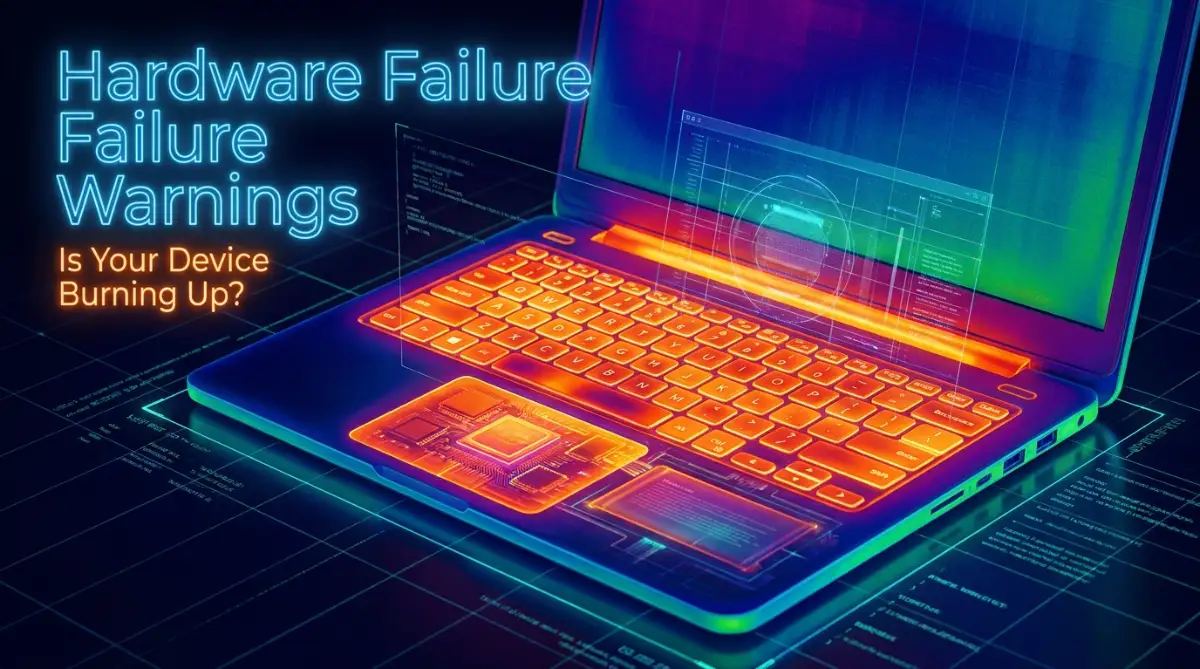
Have you ever noticed your computer running super fast in the morning, but completely freezing up by the afternoon? This frustrating experience is known as thermal throttling. It is a built-in safety feature designed to stop your expensive processor from literally catching on fire.
When the central processing unit reaches an unsafe temperature, it intentionally slows itself down to generate less heat. This makes your entire system feel incredibly slow and completely unresponsive. Opening a simple web browser might suddenly take a full minute instead of a few seconds.
Your mouse pointer might start jumping across the screen, and typing on the keyboard might feel severely delayed. Many people mistakenly think they have a terrible virus when this happens. In reality, your hardware is just desperately trying to cool down by doing less work.
Here is exactly why you need to pay attention:
If your computer feels snappy when you first press the power button but turns into a turtle an hour later, heat is your enemy. Consistently forcing a throttled machine to work hard will permanently degrade the internal silicon chips.
The Touch Test: Finding the Danger Zones
You do not need fancy software to know your machine is struggling. Your own hands are excellent temperature sensors. Gently touch the bottom panel and the area just above your keyboard keys.
If the plastic or metal feels uncomfortably hot to the touch, you are in the danger zone. A healthy device should feel slightly warm under a heavy load, but it should never burn your skin. Pay close attention to exactly where the heat is coming from.
If the left side is burning up, that is likely where your main processor is suffocating. If the bottom panel is too hot to rest on your lap, the entire chassis is failing to exhaust the trapped hot air. Never ignore a machine that physically hurts to hold.
Random Restarts and the Blue Screen Panic
There is nothing more terrifying than working on a document and suddenly seeing a bright blue error screen. Even worse is when the system just goes totally black and reboots itself without asking for your permission. This is your motherboard hitting the ultimate panic button.
Modern motherboards have dedicated heat sensors scattered all across the circuitry. If the internal heat hits a specific threshold, the power is immediately cut off to prevent an actual electrical fire. This sudden loss of power can severely corrupt your operating system and destroy your hard drive data.
If your device randomly turns off while you are playing a game or exporting a video, do not just turn it back on. Forcing it to boot up again while the copper pipes are still boiling hot will cause irreversible damage to the motherboard connections.
Watch This Helpful Breakdown to Understand the Risks
Before you accidentally damage your system further, watch this brilliant visual explanation of how heat destroys internal parts.
Unexplained Battery Drain and Physical Swelling
Extreme heat is the absolute worst enemy of any lithium-ion battery. If your chassis is constantly running hot, that heat bleeds directly into the battery cells. You will start to notice that a full charge suddenly only lasts for thirty minutes.
I once ignored a consistently hot chassis for months, thinking I could just keep my charger plugged in all day. One afternoon, I realized my trackpad had popped out of its frame because the battery underneath had swollen up like a balloon. I had to pay a massive repair bill just to fix the casing and replace the dangerous battery.
When lithium-ion cells get baked by internal heat, the chemical reaction inside them gets completely ruined. They start to expand and push against your keyboard, trackpad, and bottom cover. A swollen battery is a severe fire hazard that needs to be removed from your home instantly.
If your trackpad suddenly becomes hard to click, check the bottom of your casing. If the laptop wobbles on a flat table because the bottom is bulging out, your overheating problem has just become a physical safety risk.
Visual Glitches and Strange Screen Artifacts
Your graphics chip works incredibly hard to process everything you see on your monitor. Because it does so much heavy lifting, it generates a massive amount of internal heat. If the cooling paste sitting on top of the graphics chip dries out, the chip starts to cook itself.
You might start seeing weird green or pink lines flashing randomly across your screen. Sometimes, the colors on your display will look completely distorted, or tiny digital squares will appear out of nowhere. These strange visual bugs are called screen artifacts.
Artifacts are a massive red flag that the tiny solder joints connecting your graphics chip to the motherboard are melting. If you keep pushing the system when these glitches happen, the graphics processor will die permanently. You will be left with a completely blank screen, even though the computer sounds like it is turned on.
The Smells You Should Never Ever Ignore
Computers should not smell like anything. If you lean close to the exhaust vents and catch a whiff of a strange odor, you need to act fast. A sharp, chemical smell is a huge warning sign that something inside is literally burning.
Sometimes, it smells distinctly like melting plastic or burning rubber. This usually means a wire casing is getting way too close to a boiling hot heat pipe. Other times, you might smell a weird, sweet metallic odor, which is often a sign of a failing capacitor on the motherboard.
If you ever smell smoke or see a tiny wisp of smoke coming from the keyboard, pull the power plug out of the wall immediately. Do not try to shut it down properly through the start menu. Just cut the power instantly to prevent a massive short circuit.
Myth vs Reality: Do External Cooling Pads Actually Help?
Many people panic when their machine gets hot and immediately buy a cheap plastic cooling pad with glowing lights. They think blowing a little bit of air at the bottom casing will magically fix everything. The reality is totally different and often highly disappointing.
The Myth: A cooling pad will drop your internal temperatures back to normal and fix your lagging games completely.
The Reality: If your internal fans are clogged with dog hair and thick dust, blowing external air at the plastic shell does absolutely nothing. The hot air is still trapped inside the machine.
A cooling pad is only slightly helpful if your internal system is already completely clean and working properly. It just provides a tiny bit of extra fresh air to the bottom intakes. It is never a magical cure for a machine that is already heavily thermal throttling.
Instead of buying useless accessories, you need to lift the back of your device up with a simple book. Giving the bottom intakes an inch of empty space to breathe is totally free and works much better than a cheap plastic pad.
Software Warnings and Diagnostic Clues
Sometimes your operating system tries to tell you exactly what is wrong before the physical symptoms get too crazy. You might see a tiny warning notification pop up near your clock saying your system temperature is unusually high. Never click away or ignore these tiny digital warnings.
You can easily open your task manager to see how hard your system is working. If your processor usage is stuck at one hundred percent while you are doing absolutely nothing, your system is struggling. The harder the processor works for no reason, the more heat it generates inside the tight casing.
There are many free programs available online that can read the exact temperature of your internal parts. If you download a simple temperature monitor and see numbers hitting ninety degrees Celsius or higher, you are actively damaging your hardware. Knowing the exact numbers gives you the power to shut things down before they break.
Taking these clear warning signs seriously will save you hundreds of dollars in repair costs. Your portable workstation is a massive investment, and keeping it cool is the only way to make it last for a very long time. Keep your ears open for loud noises, watch out for sudden lag, and never ignore a machine that physically burns your hands.
Expert Strategies to Keep Your Portable Workstation Ice Cold
Taking care of your computer hardware is a lot like maintaining a vehicle. If you ignore the dashboard warnings, you will eventually end up stranded on the side of the road. You can easily apply this exact same logic to your expensive portable workstation.
I learned this lesson the hard way when my main work device started shutting down randomly. I had to figure out how to cool things down permanently. Here are the most effective, pro-level secrets I use to keep my temperatures extremely low.
The Magic of Fresh Thermal Paste
Deep inside your machine, there is a tiny layer of gray paste sitting between the processor and the copper cooling pipes. This special compound helps transfer the massive heat away from the silicon chips. Over time, this wet paste dries up and turns into a useless, chalky crust.
When that paste completely dries out, the heat gets trapped directly on the processor. Even if your internal fans are spinning perfectly, the heat simply cannot escape. Replacing this old paste is one of the smartest things you can do for an older machine.
If you are feeling brave, you can follow professional teardown guides on sites like iFixit to learn how to open your specific model safely. Wiping away the old crust and putting a tiny drop of fresh thermal compound will drop your temperatures instantly. If you are totally uncomfortable opening your device, any local repair shop can do this quickly for a very low fee.
Mastering Your Software Power Limits
Hardware is only half of the story when it comes to extreme heat. Sometimes, the software running in the background forces your processor to work much harder than necessary. You need to take total control of how much power your operating system is allowed to use.
You can easily go into your battery and power settings to make a massive difference. By simply lowering your "Maximum Processor State" from one hundred percent down to ninety-five percent, you stop the chip from constantly pushing its limits. You will not even notice a difference in daily speed, but your fans will finally stay quiet.
This simple power tweak also helps preserve your battery life in the long run. Just like how understanding the reasons overnight smartphone charging degrades batteries helps you protect your phone, managing power states protects your computer's power cells from severe heat damage.
The Deep Cleaning Routine You Actually Need
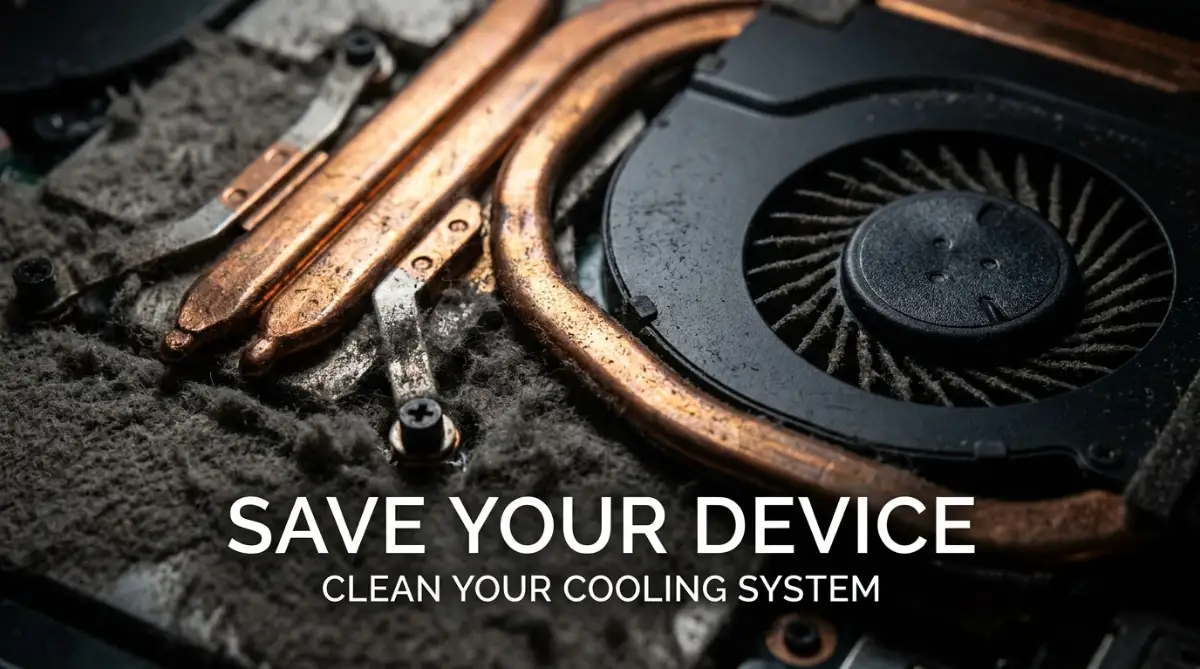
Blowing a little bit of compressed air from the outside is simply not enough. In fact, spraying high-pressure air directly into the exhaust vents can actually push thick dust bunnies deeper into the cooling fans. You need a much better cleaning strategy to get real results.
You should always turn off the machine completely and take off the bottom plastic cover. Once the back is open, gently hold the plastic fan blades with your finger so they do not spin. If you let the fan spin wildly while spraying compressed air, you can permanently break the delicate internal bearings.
Gently brush away the visible dust with a soft, clean toothbrush. Make sure the tiny copper fins on the exhaust vents are completely clear of hair and debris. Doing this proper deep clean every six months will easily add years to your device's lifespan.
Disastrous Thermal Management Mistakes You Are Probably Making Right Now
We all have terrible daily habits that slowly destroy our expensive electronics. Most of the time, we do these things simply because they feel comfortable to us. However, your comfortable habits are often a complete nightmare for your internal hardware components.
If you do not change how you physically handle your device, no amount of cleaning will save it. Let us look at the worst things you are probably doing right now without even realizing the danger.
The Ultimate Danger of Soft Fabrics
I completely understand the cozy appeal of watching movies in bed on a cold rainy night. You prop your device up on your pillows or rest it directly on your thick winter blanket. This is absolutely the fastest way to suffocate your motherboard.
The bottom of your casing is entirely covered in tiny intake holes that desperately need cold, fresh air. When you place the machine on a soft blanket, the fabric pushes up and completely seals off every single air vent. The fans start spinning frantically, but they are only sucking in hot, trapped air and tiny fabric fibers.
If you absolutely must work from your bed, you need a flat, solid barrier. Always place a hard wooden lap desk or even a large hardcover book underneath the bottom panel. Keeping the device off soft materials is just as important as setting up a proper desk space to fix your ongoing lower back pain. Both require structural support to function properly.
Ignoring the Ambient Room Temperature
Your computer's cooling system relies heavily on the actual temperature of the room you are sitting in. If your bedroom feels like a hot sauna during the summer, your cooling fans will be completely useless. They cannot blow cold air if the air around them is already boiling hot.
Pushing your hardware to play heavy video games in a ninety-degree room is asking for an immediate system crash. According to safety guidelines published by institutions like the University of Information Technology, consumer electronics operate best in climate-controlled environments below seventy-five degrees Fahrenheit.
You need to treat your electronics just like you treat yourself on a horribly hot day. If you are sweating sitting at your desk, your machine is definitely struggling to breathe too. Turn on a desk fan or simply wait until the evening to do your heavy video editing tasks.
The Background App Heat Trap
We often leave dozens of tiny programs running silently in the background of our screens. You might have three different cloud storage apps syncing files, a music player, and twenty open browser tabs. Every single open application forces the processor to generate a tiny bit more heat.
When these small tasks add up, your processor never gets a single second to rest and cool down. Even a poorly optimized internet connection can force your network card to constantly search for signals, creating unnecessary warmth. Just like you would troubleshoot frequent and annoying Wi-Fi drops to save your sanity, you need to close unnecessary background apps to save your hardware.
Make it a daily habit to right-click your taskbar and close anything you are not actively using. Never leave heavy software running minimized while you step away for a long lunch break. Give your silicon chips a chance to return to their normal resting temperature.
Working Through the Warning Signs
This is perhaps the biggest mistake of all. Many people hear their fans screaming loudly and feel the keyboard burning their fingers, but they just keep typing away. They think they can just finish one last project before giving the machine a break.
Ignoring early hardware warnings is exactly like ignoring a dashboard alert in your vehicle. If you fail to investigate the reasons your check engine light is flashing, you will eventually destroy the motor entirely. When your computer begs for mercy by slowing down, you must listen immediately.
Save your documents, close your heavy applications, and simply shut the system down completely for twenty minutes. Stepping away for a short break will protect your expensive equipment and give your own eyes a much-needed rest. This is highly effective, especially since staring at bright displays late at night naturally