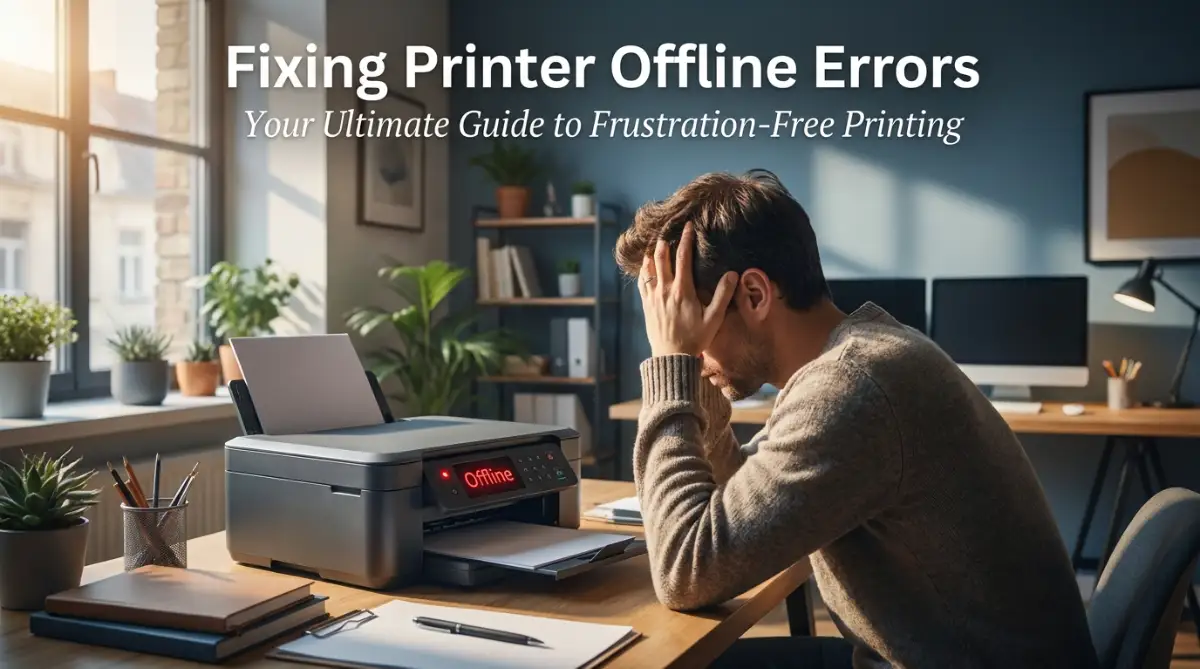
The Heartbreak of Hitting 'Print' and Hearing Silence
I remember staring at my computer screen in utter disbelief on a busy Tuesday morning. My daughter had a massive school project due in exactly twenty minutes, and my supposedly smart wireless printer was completely unresponsive. I kept mashing the print button, hoping a miracle would suddenly happen and the machine would wake up. I desperately needed this piece of technology to just do its basic job for once.
Instead of the familiar humming and clicking sounds, all I got was that dreaded "Offline" status message blinking back at me. My stress levels went through the roof as I scrambled to find a dusty USB cable that I had not used in months. We barely made it to school on time, and I spent the rest of my morning feeling entirely defeated by a simple plastic box. I realized right then that my expensive wireless setup was bringing me more anxiety than convenience.
If you have ever owned a Wi-Fi printer, you probably know exactly how this deeply irritating situation feels. You buy these smart devices for convenience, expecting them to make your daily home or office tasks much smoother. But when they randomly decide to disconnect from the network, they do the exact opposite and ruin your workflow.
The constant cycle of restarting your laptop, unplugging the internet router, and getting mad at the printer is mentally exhausting. You just want to print a simple shipping label, a recipe, or a work document, yet you end up playing the role of an unpaid IT technician. It feels incredibly unfair to spend your hard-earned money on something that actively refuses to follow your simple commands.
This unexpected tech struggle steals your peace of mind and severely damages your daily productivity. Small home office setups quickly turn into zones of pure frustration just because a machine cannot maintain a basic wireless link. The lingering anxiety of never knowing if a document will actually print on the first try is something no one should ever have to deal with.
However, you do not have to accept this stressful scenario as your normal routine. There are solid, highly logical reasons why these connection drops happen in your home network, and they are completely fixable. By understanding a few simple background processes, you can stop this recurring headache and finally enjoy a reliable printing experience.
Demystifying the Disconnect: What Actually Happens Behind the Scenes
Before we start fixing things, we need to understand why your trusted devices suddenly stop talking to each other. Your computer and your printer do not magically communicate through thin air without a middleman. They both rely heavily on your wireless home router to pass messages back and forth.
Think of your router as a busy post office that sorts out all the digital mail in your house. Every device, including your smartphone, television, and printer, gets assigned a specific digital address. When you click print, your computer sends the document to the router, which then forwards it to the printer's specific address.
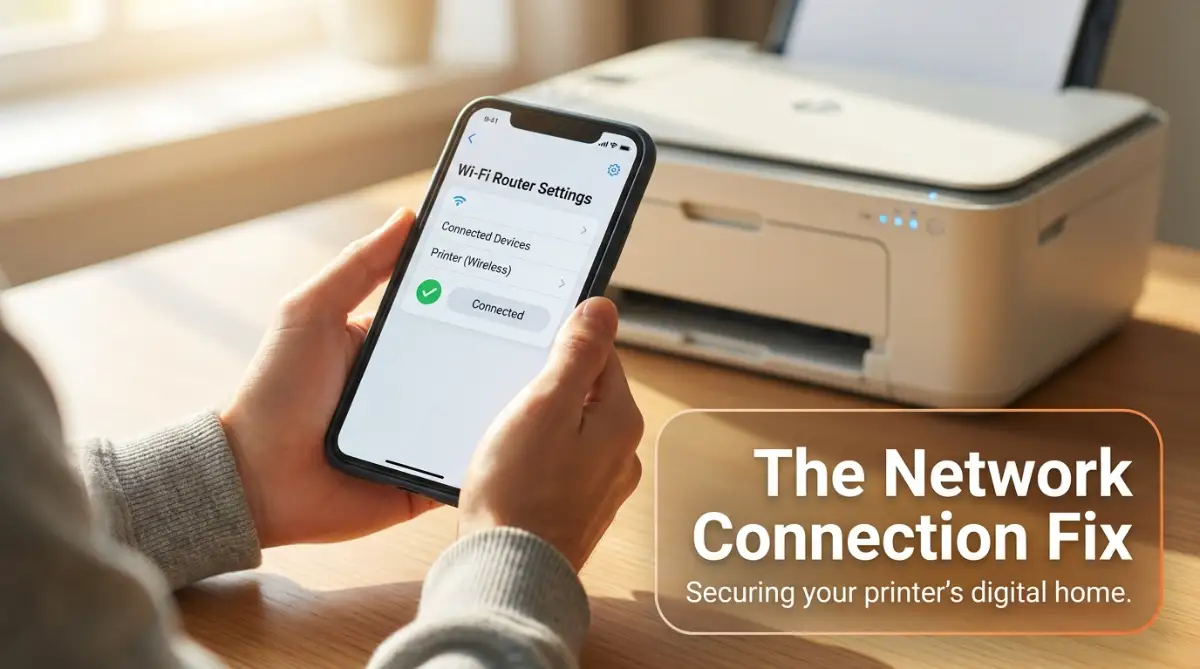
The problem begins when your router decides to randomly change the addresses of your connected devices. Because wireless networks are highly dynamic, a device that falls asleep might lose its spot. When the printer wakes back up, the router might hand it a completely different digital address.
Now, your computer is still trying to send that important document to the old address. Because the printer is no longer sitting at that old address, the computer assumes the machine has simply vanished. This communication failure is exactly why your screen displays the annoying "Offline" warning.
Myth vs Reality: The Wi-Fi Printer Edition
We often believe a lot of incorrect things about our home electronics when we get frustrated. Let us clear up some common misconceptions that might be holding you back from finding a real solution.
- The Myth: My printer is broken and I need to buy a brand-new one right now.
- The Reality: The hardware is usually perfectly fine. The issue almost always lies in how your wireless network organizes its internal traffic.
- The Myth: I need to be a computer genius to fix network connection drops.
- The Reality: Fixing this issue just requires clicking a few specific buttons on your screen. You do not need any special coding skills.
Practical Strategies to Keep Your Machine Online Permanently
Now that we understand the root cause of the silent treatment, it is time to take action. I have broken down the most effective solutions into easy, manageable actions. You can follow these exact guidelines right now to restore your connection.
Start with a Clean Slate (The Advanced Power Cycle)
We often joke about turning things off and on again, but this actually holds a lot of scientific truth. When electronic devices run for weeks without a break, their internal memory gets cluttered with temporary errors. A simple power cycle forces the devices to drop all their current tasks and start completely fresh.
Turn off everything in the communication chain. This includes your computer, the printer, and most importantly, your wireless router. Unplug them directly from the wall socket to ensure all residual electricity drains out of their system.
Leave everything completely unplugged for at least one full minute. Then, plug in your router first and wait for all the green lights to become steady. Next, turn on your printer, wait for it to connect to the Wi-Fi, and finally boot up your computer.
The Permanent Address Trick (Assigning a Static IP)
Remember our earlier conversation about the router changing the digital addresses like a confused post office? The best way to prevent your computer from losing track of your machine is to give the printer a permanent home. In the tech world, we call this assigning a static IP address.
When you assign a static address, you are telling the router to never give that specific combination of numbers to any other device. No matter how many times the printer goes to sleep or loses power, it will always wake up in the exact same spot. Your computer will always know exactly where to send your urgent documents.
How to find your current address: Go to your printer's small built-in screen and look for the network or wireless settings menu. Print out a "Network Configuration Page" directly from the machine. This piece of paper will display a series of numbers separated by dots, which is your current IP address.
You can then type those numbers into your computer's web browser to access the hidden settings menu of your printer. Look for a section labeled "Network" or "IPv4 Settings" and change the configuration from Automatic to Manual. Type in the same numbers, save the changes, and you have just created a permanent digital address.
Clearing the Digital Traffic Jam (Resetting the Print Spooler)
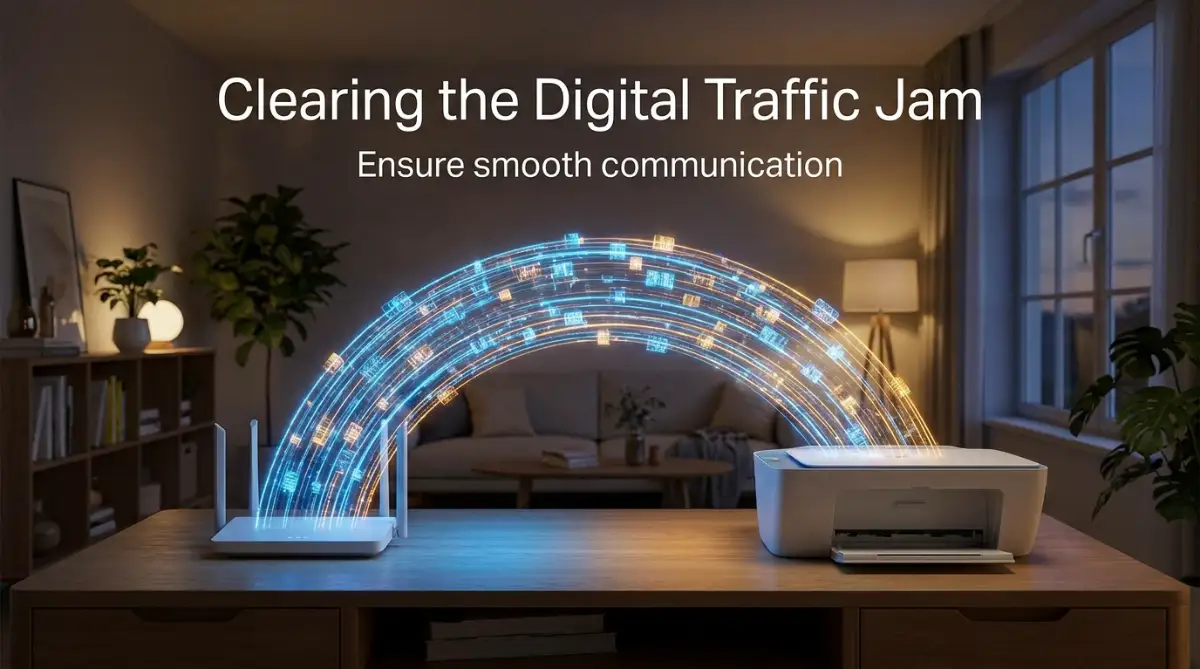
Sometimes the network is working perfectly, but the internal software on your computer gets completely jammed up. Your computer uses a background program called the Print Spooler to line up your documents in a neat queue. If one corrupted document gets stuck at the front of the line, it stops everything else behind it.
Your computer might show the printer as offline simply because the spooler program has crashed in the background. You can easily restart this program without having to restart your entire computer.
On a Windows computer, press the Windows key and type "Services" into the search bar. Scroll down the long alphabetical list until you find the option named "Print Spooler". Right-click on that name, hit the "Restart" button, and watch as the digital traffic jam instantly clears out.
I actually learned this the hard way after fighting with my setup for three whole days. I tried everything under the sun, only to realize a single corrupted PDF file from last week was quietly blocking all my new print jobs.
My Personal Pro Tip: Whenever my system acts up now, I immediately check my print queue before touching any hardware. I learned that clearing out old, failed print jobs is often the fastest way to get things moving again. It saves me from unnecessarily messing with my router settings when the internet is not even the problem.
Ready to see this process in action? Check out this highly detailed visual guide that walks you through clearing your spooler step by step!
The Language Barrier: Updating Corrupted Drivers
Think of a driver as a digital translator that helps your computer and printer speak the same language. If this translator gets outdated or corrupted, the two devices will completely misunderstand each other. Your computer might ask the printer to wake up, but the printer hears absolute nonsense and stays asleep.
Manufacturers frequently release updated drivers to fix known bugs and improve how their devices handle wireless signals. If you are still using the software that came on a CD five years ago, you are definitely missing important stability patches.
Always get your updates directly from the official source. Go to the manufacturer's official website, type in your exact model number, and download the latest software package. Installing a fresh driver often clears out old hidden glitches and instantly brings the device back online.
Splitting the Network: The 2.4 GHz vs 5 GHz Confusion
Modern wireless routers are incredibly smart, and they often broadcast two different Wi-Fi signals at the same time. As you can see in the comparison table above, these two signals serve very different purposes in your home. Most smartphones and laptops automatically jump to the fast 5 GHz band for better streaming speeds.
However, a huge majority of home printers are only built with a 2.4 GHz Wi-Fi chip inside them. If your computer is connected to the 5 GHz signal and your printer is on the 2.4 GHz signal, some older routers struggle to pass messages between them. They end up acting like two entirely different invisible networks inside the same house.
To solve this hidden issue, log into your router settings and make sure both bands have slightly different names. You can name one "Home_Network" and the other "Home_Network_5G". Connect both your computer and your printer strictly to the 2.4 GHz network when you need to print reliably.
The Silent Killer: Physical Obstacles and Interference
We rarely think about the physical layout of our homes when dealing with invisible Wi-Fi signals. However, wireless waves are highly sensitive to the physical objects sitting between your router and your work desk. If the signal is too weak, the printer will drop the connection simply because it cannot hear the router anymore.
Large metal objects are the biggest enemies of a stable network connection. If your printer is sitting right next to a kitchen microwave, a large metal filing cabinet, or even a thick brick wall, the signal will constantly break. Even large aquariums filled with water can block wireless signals from passing through a room.
Take a close look at your home office setup today. Try to position your printer so there is a relatively clear line of sight to the router. If they have to be in different rooms, consider moving the machine away from the corners of the room or lifting it higher off the floor.
Wake Up the Sleeping Device (Power Management Tweaks)
Manufacturers design printers to be environmentally friendly, meaning they automatically go into a deep sleep mode when not in use. While this saves a tiny bit of electricity on your monthly bill, it often ruins your network stability. Some machines sleep so deeply that they disconnect from the Wi-Fi completely to save power.
When you send a document from your laptop, the machine is supposed to wake up automatically. Unfortunately, cheaper network cards fail to register the wake-up call, leaving the device in a permanent offline state.
You can usually disable or adjust this sleep mode. Access the device's main settings menu on its small display screen and look for "Eco Mode" or "Power Management". Change the sleep timer from five minutes to a much longer duration, or turn the deep sleep feature off completely.
Another hidden setting on Windows computers involves something called the SNMP Status. Sometimes, Windows misreads the network signals and assumes the machine is off when it is actually just resting.
Go to your computer's control panel, find your device settings, and look at the port configurations. Unchecking the box for "SNMP Status Enable" often stops Windows from falsely reporting the machine as offline.
By applying these thoughtful changes, you take total control over how your devices communicate with each other. You no longer have to cross your fingers and hold your breath every time you hit that print button. Your home office can finally become a place of smooth productivity instead of unexpected technological panic.
Moving Beyond the Basics: Expert Strategies for Unbreakable Connections
You have already learned how to reset your devices and assign a basic digital address. Now, we are going to look at how professional network technicians keep office equipment online permanently. These advanced strategies go a step further to ensure you never have to deal with annoying connection drops again.
I know digging into advanced settings sounds slightly intimidating at first. However, I promise to walk you through these expert methods using completely normal, everyday language. Once you apply these hidden tweaks, your wireless connection will become incredibly stable and reliable.
The VIP Parking Spot (Router-Level DHCP Reservation)
Earlier, we talked about manually entering a permanent IP address directly on your printer's small screen. While that method works well, there is an even stronger way to lock down that connection from the source. Network experts use a feature called a DHCP Reservation directly inside the main home router.
Think of this method like reserving a permanent VIP parking spot at a busy restaurant. Instead of hoping the spot is empty when your printer arrives, the router actively guards that specific address. It memorizes your machine's unique hardware fingerprint, which is called a MAC address.
To set this up, you need to log into your router's administration panel through your web browser. Look for a menu labeled "LAN Setup" or "DHCP Settings" and find the connected devices list. Simply locate your printer on that list, click the option to "Reserve IP," and save your changes.
This guarantees that no other smartphone or tablet in your house can ever steal the printer's digital spot. If you want to learn more about resolving persistent wireless drops across all your devices, managing your router settings is highly effective.
Ditching Buggy Protocols (Switching to Standard TCP/IP)
When you install a new machine on a Windows computer, the operating system usually tries to be overly helpful. It automatically assigns the connection using a protocol called WSD (Web Services for Devices). Unfortunately, network engineers know that the WSD protocol is notoriously buggy and constantly drops offline.
When your computer goes to sleep, the WSD connection completely forgets how to talk to the printer. You can easily bypass this flawed system by forcing your computer to use a much more stable communication method. We call this switching to a Standard TCP/IP port.
Go to your computer's "Printers & Scanners" menu, select your device, and open the "Printer Properties" window. Click on the "Ports" tab at the top and hit the button that says "Add Port." Choose "Standard TCP/IP Port," type in the permanent IP address we discussed earlier, and hit apply.
This simple switch creates a direct, unfiltered pipeline between your computer and the printing machine. For a deeper technical understanding of how these ports handle local traffic, you can read the official networking protocol documentation from the Internet Engineering Task Force (IETF).
Allowing Safe Passage Through Your Digital Wall
Your computer comes with a built-in security guard called a firewall, which protects you from outside internet threats. Sometimes, this security guard gets a little too aggressive and accidentally blocks friendly local traffic. If your firewall mistakenly identifies your printer's signals as a threat, it will completely shut down the connection.
You need to tell your computer that the printing machine is a trusted device on your home network. Open your Windows Defender or third-party antivirus settings and look for the "Firewall" or "Network Protection" section. You will find an option to "Allow an app through the firewall."
Scroll down the list and ensure that "File and Printer Sharing" has a checkmark next to both Private and Public networks. This gives your machine a permanent security pass to send and receive documents without getting blocked.
The Hidden Firmware Upgrade
Most people know they need to update the software on their computers, but they completely forget about the printer itself. Your printing machine actually has its own tiny operating system running inside it, known as firmware. When this internal brain gets outdated, it struggles to understand modern Wi-Fi signals.
Manufacturers frequently release hidden firmware updates to fix known connection errors and improve signal processing. You will not usually find these updates in your normal computer software menus. You have to log directly into the printer's hidden web interface using its IP address to find the upgrade button.
Keeping this internal system fresh is incredibly important for long-term stability. Just like cleaning up hidden system clutter on a hard drive, updating firmware removes old digital bugs that cause unexpected crashes.
Disastrous Networking Mistakes That Will Drive You Crazy
When we get desperate to fix a broken connection, we often start clicking buttons blindly. This panicked approach usually creates much bigger problems that are incredibly difficult to reverse. I want to highlight some of the most common traps people fall into so you can completely avoid them.
Making these simple mistakes will instantly ruin a perfectly good home office setup. By understanding what not to do, you will save yourself hours of unnecessary stress and expensive technician fees.
The "Guest Network" Trap
Many modern routers offer a secondary "Guest Wi-Fi" signal designed for visitors to use when they come over. It is a great security feature because it gives friends internet access without letting them see your personal computer files. However, connecting your home office equipment to this guest signal is a massive mistake.
Guest networks are specifically programmed to isolate every single device from each other. If your laptop and your printer are both connected to the guest signal, they literally cannot see each other. The router actively blocks them from communicating, resulting in a permanent offline status message.
Always double-check your smartphone or computer settings to ensure you are connected to your main private network. If you are interested in reading more about security guidelines for isolating smart devices safely, government cybersecurity agencies offer excellent advice on proper network segmentation.
The Cheap Wi-Fi Extender Disaster
When people notice a weak signal in their home office, their first instinct is to buy a cheap Wi-Fi extender. These little plug-in boxes grab your main internet signal and bounce it further down the hallway. While they do extend your internet range, they completely destroy local device communication.
Most basic extenders create an entirely new network name, usually adding "_EXT" to the end of your normal Wi-Fi name. If your computer stays connected to the main router while the printer connects to the extender, the link breaks. The devices are now living on two different digital islands that refuse to share information.
Instead of buying a cheap extender, it is much better to invest in a proper Mesh Wi-Fi system. A mesh system acts as one giant, seamless network that allows all devices to talk freely regardless of which room they are in. If you are already working on building a comfortable and functional home office, a strong mesh network should be your top priority.
Misconfiguring the Windows Network Profile
Windows operating systems have a very specific security feature that asks if your current network is "Public" or "Private." When you sit at a local coffee shop, you naturally choose "Public" so strangers cannot access your laptop. The problem happens when you accidentally choose "Public" for your own secure home network.
When your computer thinks it is sitting in a public space, it turns invisible to protect itself. It immediately turns off all file sharing, device discovery, and printing capabilities. Your printer could be working perfectly, but the computer is actively hiding from it.
To fix this, go to your computer's Wi-Fi settings and click on your current connection properties. Simply change the network profile from "Public" back to "Private" and watch your devices instantly discover each other again.
Relying on USB Cables as a Permanent Band-Aid
After fighting with wireless settings for hours, the temptation to just plug in a USB cable is incredibly strong. While a direct wire is totally fine for an emergency print job, it ruins your long-term setup. Your computer creates a completely separate software profile for the USB connection, which conflicts with the wireless profile.
When you finally unplug the cable and try to print wirelessly again, the computer gets deeply confused. It keeps trying to push the document through the missing physical wire instead of the invisible network. This leads to duplicate printer names in your settings, like "Printer Copy 1" and "Printer Copy 2", causing massive headaches.
If you must use a cable for an absolute emergency, remember to delete the USB printer profile immediately afterward. This keeps your system clean and ensures the wireless connection remains the default choice.
Ignoring Invisible Physical Blockers
We cannot see Wi-Fi waves, so we easily forget that physical objects heavily disrupt them. People often tuck their printing machines into tight corners, inside heavy wooden cabinets, or right next to large metal appliances. These physical barriers absorb the digital signals before they can ever reach the router.
One of the biggest silent killers of a wireless signal is actually water. If you have a large fish aquarium sitting between your desk and the router, your connection will randomly drop constantly. Microwaves, cordless home phones, and Bluetooth speakers also create heavy invisible interference.
You should treat your router and office equipment like two people trying to have a conversation across a crowded room. They need the clearest possible path to hear each other properly without interference. For an in-depth look at managing everyday wireless radio interference, consumer technology boards provide fascinating insights into physical signal bloc