The Quiet Frustration of a Burning Laptop
Have you ever felt your laptop keyboard get warm enough to cook an egg? You are sitting at your desk, trying to finish your work, but your lap feels like a furnace. The internal fan starts screaming like a jet engine, and you watch your battery percentage drop right before your eyes.
It is incredibly stressful when your primary daily tool starts showing signs of struggle. You bought this machine to make your life easier, not to worry about it shutting down unexpectedly. Yet, here you are, searching for a nearby wall outlet because your battery cannot hold a charge for more than an hour.
This is the reality for millions of laptop users who do not realize that heat is slowly destroying their devices. Every warm breeze coming from those side vents is a sign of internal wear. Let us look at what is happening under the hood and why ignoring this warmth is a costly mistake.
Why Heat is the Ultimate Battery Enemy
To protect your device, we need to understand the science of what is happening inside the case. Most modern laptops use lithium-ion batteries because they are lightweight and hold a lot of energy. However, these batteries rely on active chemical reactions to store and release electrical power.
When your laptop gets hot, these chemical reactions inside the battery speed up rapidly. While this sounds like it might produce more power, it actually causes the battery to degrade much faster. The delicate internal parts of the battery begin to break down under high thermal stress.
Think of it like running a marathon in a heavy winter coat. You might survive, but your body will wear out much quicker than if you wore light clothing. Your laptop battery feels the exact same way when the internal temperature climbs too high.
Understanding the Safe Temperature Zone
Your battery has a specific comfort zone where it operates beautifully without taking permanent damage. Knowing these numbers can help you keep your machine safe.
If you regularly use your device in hot environments, you are actively shortening its lifespan. Keeping the device cool is not just about comfort; it is about saving your wallet from an expensive replacement.
Myth vs. Reality: Laptop Battery Heat
There are many common misconceptions about how laptop batteries handle heat and charging. Let us clear up some of these myths so you can take better care of your hardware.
Myth: Keeping your laptop plugged in all the time is what kills the battery.
Reality: Keeping it plugged in is mostly fine, but doing so in a hot room is the real danger. High charge levels combined with high heat speed up battery aging.
Myth: Using a laptop on your bed is fine as long as you do not hear the fan.
Reality: Soft blankets block the tiny intake vents underneath the laptop frame. Even if the fan stays quiet for a bit, heat is trapped inside and bakes the battery.
Myth: Battery saver mode cools down the laptop instantly.
Reality: It helps reduce background CPU power, but it will not fix blocked vents or a dusty fan. Physical airflow is always the most important factor.
How Heat Causes Battery Swelling and Permanent Damage
Have you ever seen a laptop with a trackpad that looks like it is lifting up? Or perhaps the bottom plastic case looks slightly warped and rounded? This is a clear sign of a swollen lithium-ion battery, which is a serious safety hazard.
When a battery gets too hot, it can generate gas through a process called outgassing. This gas builds up inside the sealed battery casing, causing it to bloat like a balloon.
Extreme Heat => Chemical Breakdown => Gas Production (Outgassing) => Battery Swelling / Bloating => Physical Damage or Fire Hazard
A swollen battery can puncture easily, leading to chemical leaks or even fires. If you notice any warping on your laptop case, you should stop using it immediately and seek professional help.
Step-by-Step Ways to Keep Your Laptop Running Cool
Now that you know the dangers, let us look at some simple things you can do to lower your laptop's temperature and keep it running smoothly. These are practical steps you can start using today.
1. The Hard, Flat Surface Rule
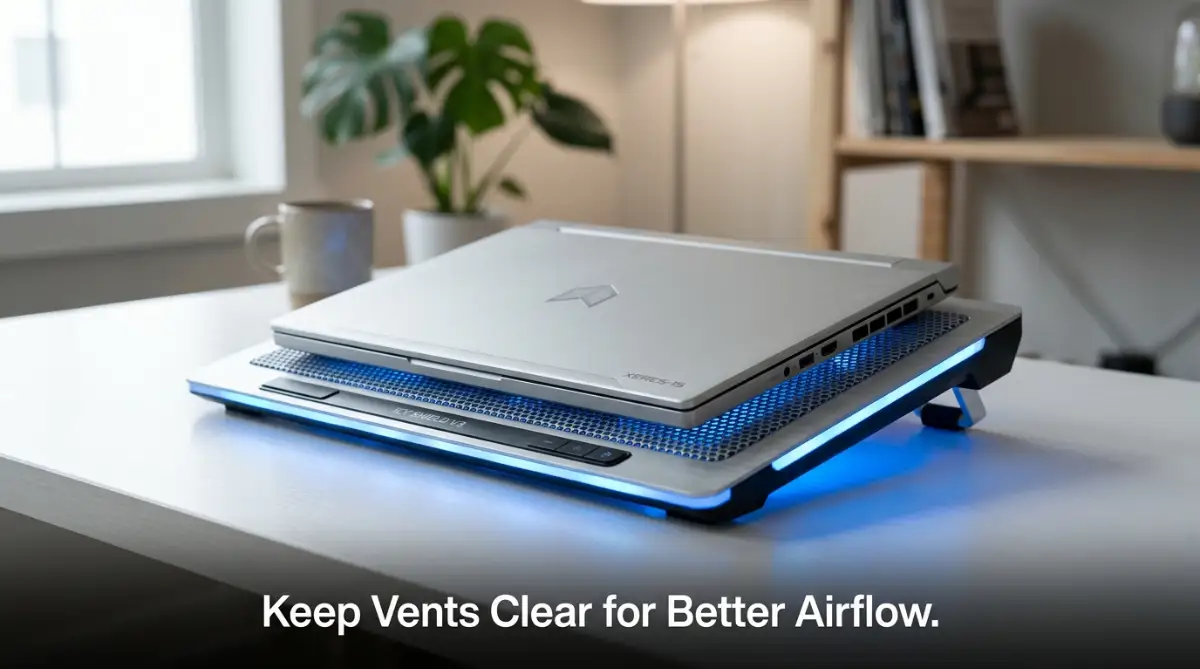
The easiest way to help your laptop breathe is to always place it on a hard, flat surface. Tables, desks, and lap desks are perfect because they leave a small gap under the laptop.
This gap allows the small rubber feet on the bottom of your laptop to do their job. They elevate the device just enough for fresh air to circulate underneath and cool the internal parts.
Avoid placing your running laptop on beds, pillows, carpets, or even your actual lap for long periods. These soft materials block the air vents, trapping heat inside like a heavy blanket.
2. Clean Out the Hidden Dust
Over time, your laptop's cooling fans act like tiny vacuum cleaners. They pull in cool air, but they also pull in dust, pet hair, and lint.
This dust settles on the fan blades and the metal cooling fins inside. Eventually, it forms a thick blanket of dust that blocks the hot air from escaping.
- Turn off your laptop and unplug it from the charger.
- Locate the exhaust and intake vents on the sides or bottom.
- Use a can of compressed air to blow short bursts of air into the vents.
- This will dislodge the dust and allow the fans to spin freely again.
Doing this simple maintenance once every few months can drop your temperatures by several degrees.
3. Manage Your Internal Workload
Sometimes the heat is not caused by dust, but by what you are running on your screen. Demanding software makes your processor work harder, which generates massive amounts of heat.
Open your system's Task Manager (Windows) or Activity Monitor (Mac) to see what is running. Look for programs that are using a high percentage of your CPU even when you are not actively using them.
Close any browser tabs you do not need, and quit background applications that are running silently. Reducing the workload on your processor keeps the system cool and saves your battery.
4. Adjust Your Charging Habits
Many people do not know that charging a battery actually generates heat on its own. If you are charging your laptop while also playing a heavy game, you are creating a double heat source.
Try to charge your laptop when you are doing lighter tasks like reading or typing documents. If you need to do heavy video editing, consider letting the laptop charge first before starting your work.
Some laptop brands also offer software that lets you limit the maximum charge to 80%. This is an excellent feature because it prevents the battery from sitting at 100% capacity in a warm state, which is highly damaging.
Simple Habits for Long-Term Laptop Health
Taking care of your laptop does not require a lot of technical knowledge. It is mostly about building simple, everyday habits that protect your hardware.
For example, never leave your laptop inside a parked car on a warm afternoon. Cars act like greenhouses, and the temperatures inside can easily destroy a battery in a couple of hours.
Also, try to give your laptop a break during long working sessions. Shutting it down for ten minutes while you grab a cup of water allows the internal components to cool down fully.
Next-Level Settings: Software Tweaks to Lower Laptop Heat
Taking care of your laptop goes beyond just keeping it on a clean table. There are internal settings that can help you reduce heat generation directly from the operating system. By managing how your system uses its resources, you can keep the internal temperatures much lower.
One of the most effective methods is to configure your laptop's maximum processor state. By default, Windows allows your CPU to run at 100% capacity, which can cause sudden spikes in temperature. Adjusting this value down to 95% or 99% in your advanced power settings can significantly reduce heat without any noticeable loss in daily performance.
Another excellent step is to check your hardware diagnostics regularly. You do not need expensive software to inspect your battery's current physical state. If you are using a Windows machine, you can run a quick diagnostic check to see exactly how much your battery has degraded.
[Start Menu] -> [Type "cmd"] -> [Run as Administrator] -> [Type "powercfg /batteryreport"]
This command generates a detailed HTML file on your drive showing your battery's Design Capacity compared to its Full Charge Capacity. When you review this file, look for sudden drops in the full charge number, which often happen after periods of heavy overheating. For more details on maintaining lithium-based power packs, you can explore the Battery University guide on prolonging lithium batteries.
Limiting Your Maximum Battery Charge
Most modern laptops sit on desks plugged into power adapters all day long. Keeping a lithium-ion battery at 100% charge while the laptop is warm creates a very stressful environment for the cells. The chemical structure inside the battery degrades rapidly under this specific set of conditions.
To combat this issue, most manufacturers build dedicated battery management software into their devices. Programs like Lenovo Vantage, MyASUS, or Dell Power Manager allow you to set a charging cap of 60% or 80%.
Capping the charge level reduces the electrical pressure inside the cells, keeping them physically stable even when the laptop gets warm during heavy work. If you are a digital content creator working with heavy rendering software or using the top free ai video generators for content creators, your machine will naturally run at peak performance. This generates intense processing heat, making it even more important to monitor temperatures during long editing sessions.
Tuning the Internal Fan Profiles
Many people do not know that they can manually adjust how fast their laptop fans spin. While the default automatic settings work for basic tasks, they sometimes react too slowly when the temperature rises.
By installing your manufacturer's official utility tool, you can switch your system's fan profile to a cooler preset. Selecting "Cool" or "Performance" mode forces the fans to spin faster and sooner, preventing heat from building up in the first place.
While this might make your laptop slightly louder, it keeps your battery in a much safer temperature zone. The extra fan noise is a very small price to pay for protecting your expensive hardware from permanent damage.

Common Habits That Heat Up and Damage Your Device
Many of us accidentally overheat our laptops every day without realizing what we are doing wrong. These small habits might seem harmless at the time, but they slowly degrade your battery life week after week.
One classic mistake is running large system updates while your laptop is resting on a soft bed or couch. System updates require a huge amount of processing power, which makes the CPU run at its maximum temperature. Combining this peak heat output with blocked intake vents is a recipe for battery damage.
Another major issue is ignoring strange noises coming from your laptop's cooling fan. If you hear clicking, grinding, or a rattling noise, it means the fan bearing is failing or clogged with heavy debris. A struggling fan cannot move hot air out of the case fast enough, which leads to immediate thermal throttling.
When you stay glued to your screen trying to fix sluggish performance or working for hours on a hot machine, you are not only hurting your device. You are also putting excessive stress on your physical health. If you feel tired after long sessions, learning how to relieve screen eye strain naturally can help you set up a healthier routine for both your body and your technology.
[Rattling Fan] ───► [Low Airflow] ───► [High Internal Heat] ───► [Battery Degradation]
The Pitfalls of Using Cheap Third-Party Power Adapters
It can be tempting to buy a cheap replacement charger online when your original power cable stops working. However, many aftermarket chargers lack proper voltage regulation and safety certifications.
These low-quality chargers often supply unstable power, which causes your laptop's internal charging circuits to work much harder. This extra workload creates intense heat directly around the area where your battery is located.
Using an uncertified charger can also lead to electrical spikes that permanently ruin the battery controller board. Always try to stick to original equipment manufacturer accessories to ensure clean, stable power delivery.
Running Heavy Software on Your Lap
It is called a "laptop," but using it directly on your lap during intense tasks is a bad idea. Your body heat can add to the device's temperature, while your clothes can block the cooling vents underneath.
This blocks the natural convection process that allows heat to radiate off the metal base. Over time, this trapped heat deforms the plastic casing and cooks the internal battery cells.
If you must use your laptop on your lap, try to limit your activities to simple tasks like reading text or replying to emails. Save the heavy gaming, photo editing, and video rendering for a flat, hard desk.
Your Practical Daily Action Plan for a Chilled System
You do not need to perform complex hardware modifications to keep your laptop cool and happy. Instead, you can follow a simple daily routine that ensures your hardware stays in top shape.
Getting into the habit of shut-downs rather than using sleep mode is an easy place to start. Many laptops occasionally wake up inside tight carrying bags due to background updates, which can cause extreme overheating in enclosed spaces.
According to published research on lithium battery degradation, reducing average operating temperatures by just a few degrees can double the useful lifespan of your power cells. This simple fact shows why daily prevention is far better than paying for an expensive repair later.
A Simple Five-Point Maintenance Checklist
To make things easy, here is a quick daily checklist you can use to keep your device running cool:
- Elevate the Base: Use a simple laptop stand or a small prop under the back feet to improve air circulation underneath the device.
- Keep Vents Clear: Make sure there are at least three inches of empty space around your laptop's side and back vents.
- Shutdown Before Packaging: Always turn your laptop completely off before placing it inside a backpack or sleeve.
- Avoid Direct Sunlight: Never use your laptop under direct sunlight or leave it inside a warm car during the day.
- Listen to the Fans: Pay attention to how loud your fans are spinning, and close heavy background apps if they stay at high speeds.
Starting these small physical habits today will keep your system responsive, quiet, and reliable for years to come. Your laptop is a major investment, and keeping it cool is the single best way to protect that investment.
Product Disclaimer
Disclaimer: The technical tips and maintenance steps provided in this article are for general educational purposes only. Always consult your laptop manufacturer's official user guide and warranty terms before modifying system power settings or opening your device for cleaning. If your battery is already physically swollen or showing signs of severe damage, stop using the device immediately and contact an authorized repair center to avoid safety hazards.